
AD Pixel
Pixel configuration is mainly used for reporting advertising events. Currently, the ROIBest platform only returns the "Add to Wishlist" event. Other events are returned through parameters. Please go to the advertising or website backend to inquire;
This operation requires configuring Facebook PixelCode first. If you already know the steps, you can directly follow the steps below. If you are not sure, please click Facebook How to Get PixelCode/Test Event Code/Access Token and configure it according to the tutorial;
Step 1 - Add Facebook Ad Pixel
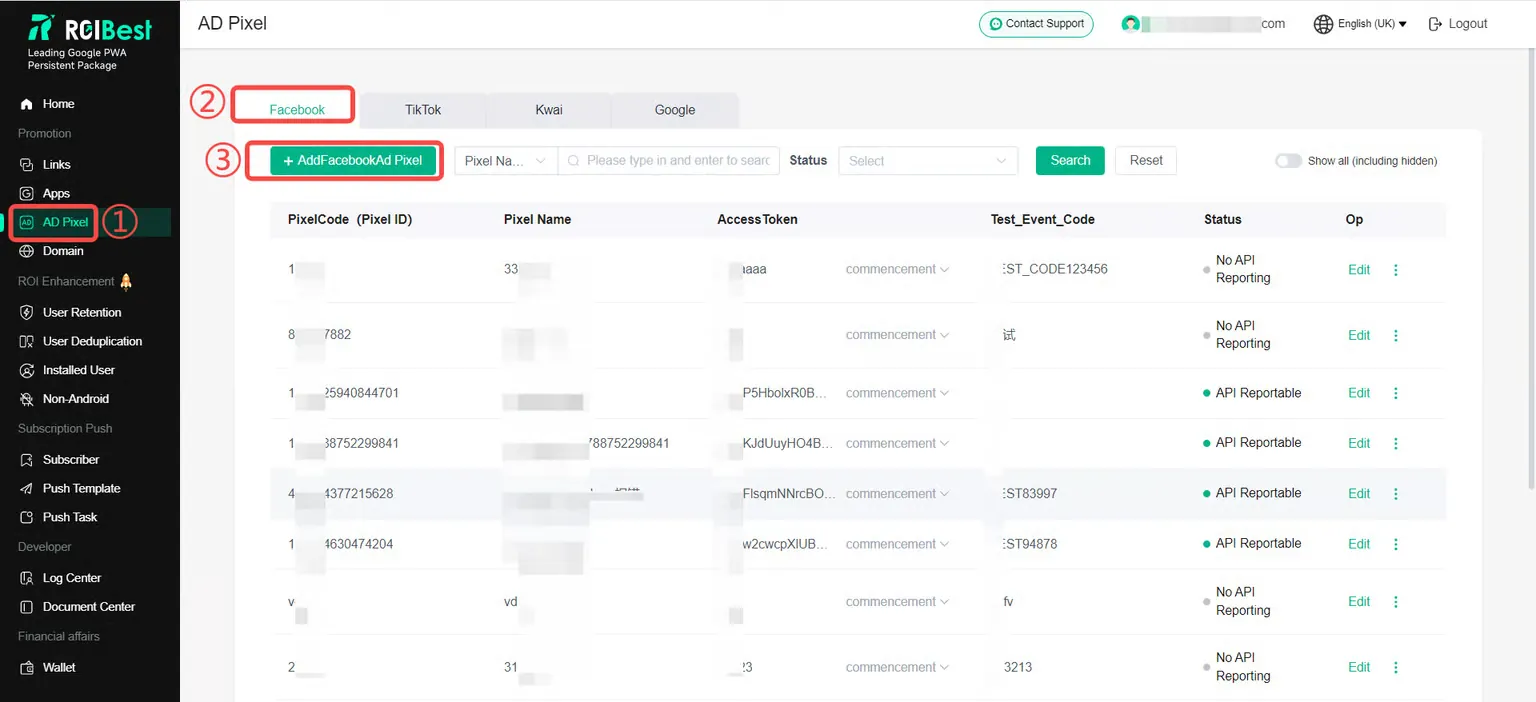
Click [AD Pixel ] to enter the page, select [Facebook] and click [+Add Facebook Ad Pixel] to enter the information filling page;
Compare the Facebook advertising backend, fill in the advertising pixel information, and click [Save]
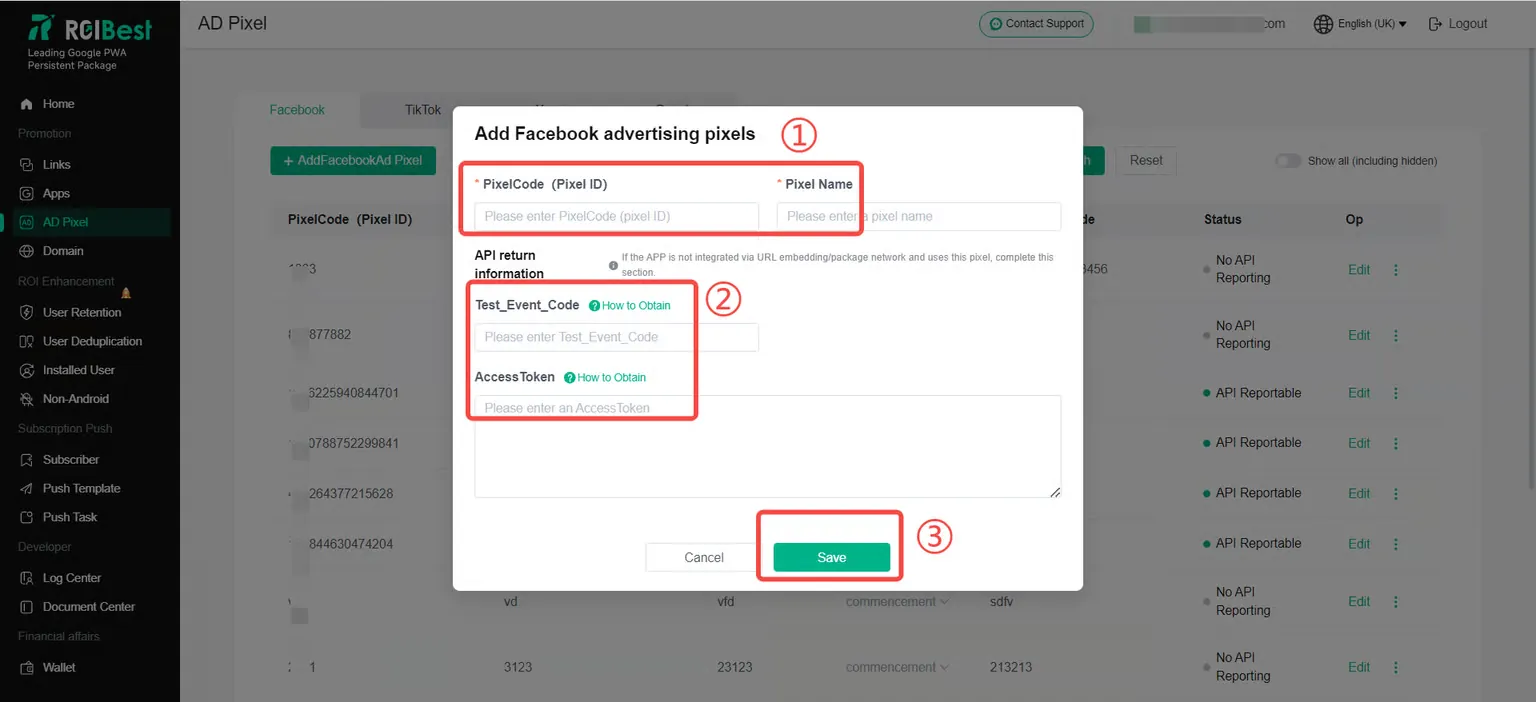
Note:
①Fields marked * are required;
②Test_Event_Code and Access Token. If you fill in one of them, the other is required;
③Users who call the ROIBest API interface must fill in Test_Event_Code and Access Token; if there is no need to call, they don’t need to fill in;
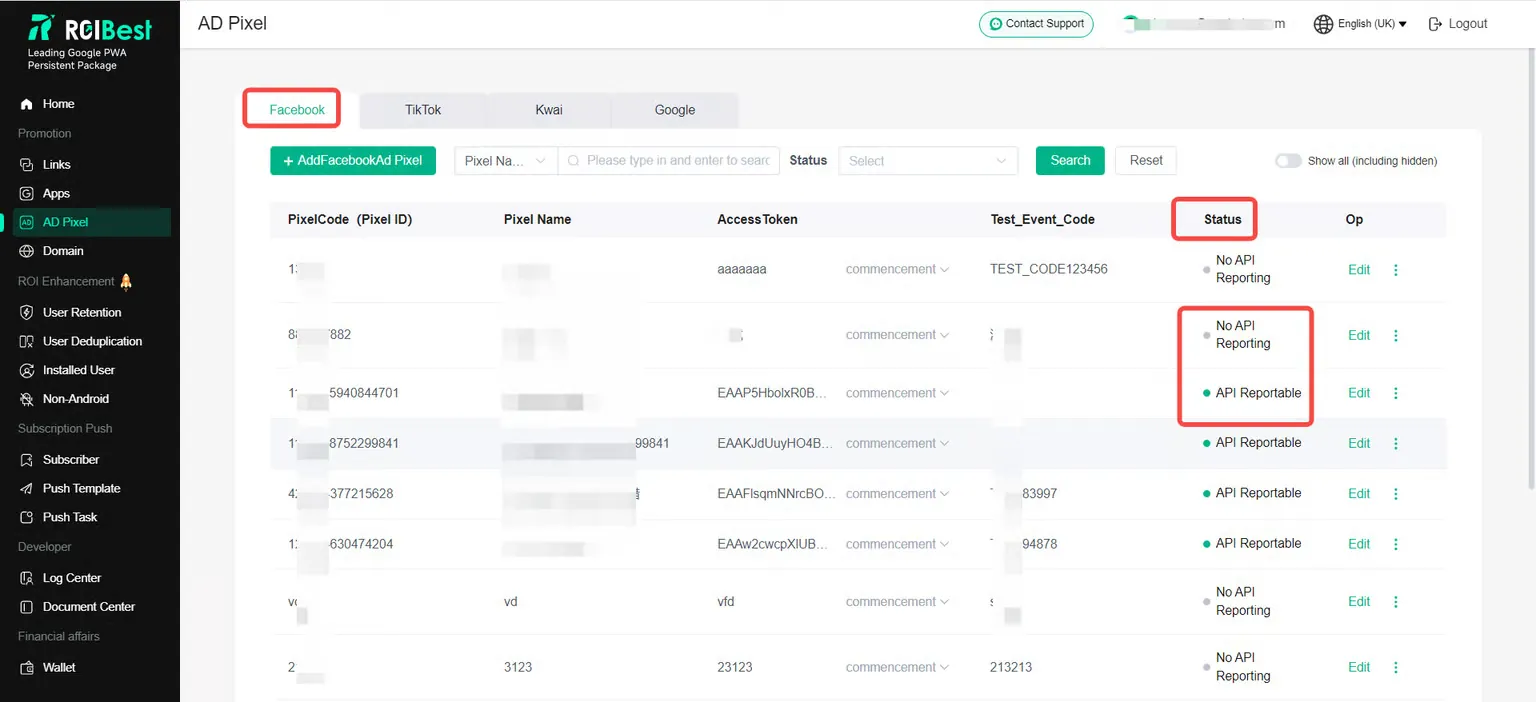
**Step 2 -**Check API reporting status
Package Network Integration: It is normal that no API is reported, just make sure the Pixel Code (Pixel ID) is filled in correctly;
Self-developed H5 project package (zip): If it shows that there is no API report, please check whether the Pixel Code (Pixel ID), Test_Event_Code, and Access Token are filled in. If there is any error, edit it and modify it to be correct. Please be careful not to leave any spaces when filling in;
TikTok
This operation requires configuring the TikTok PixelCode first. If you already know the steps, you can directly follow the steps below. If you are not sure, please click the TikTok How to Get PixelCode/Test Event Code/Access Token tutorial to configure it;
Step 1 - Add TikTok Ad Pixel
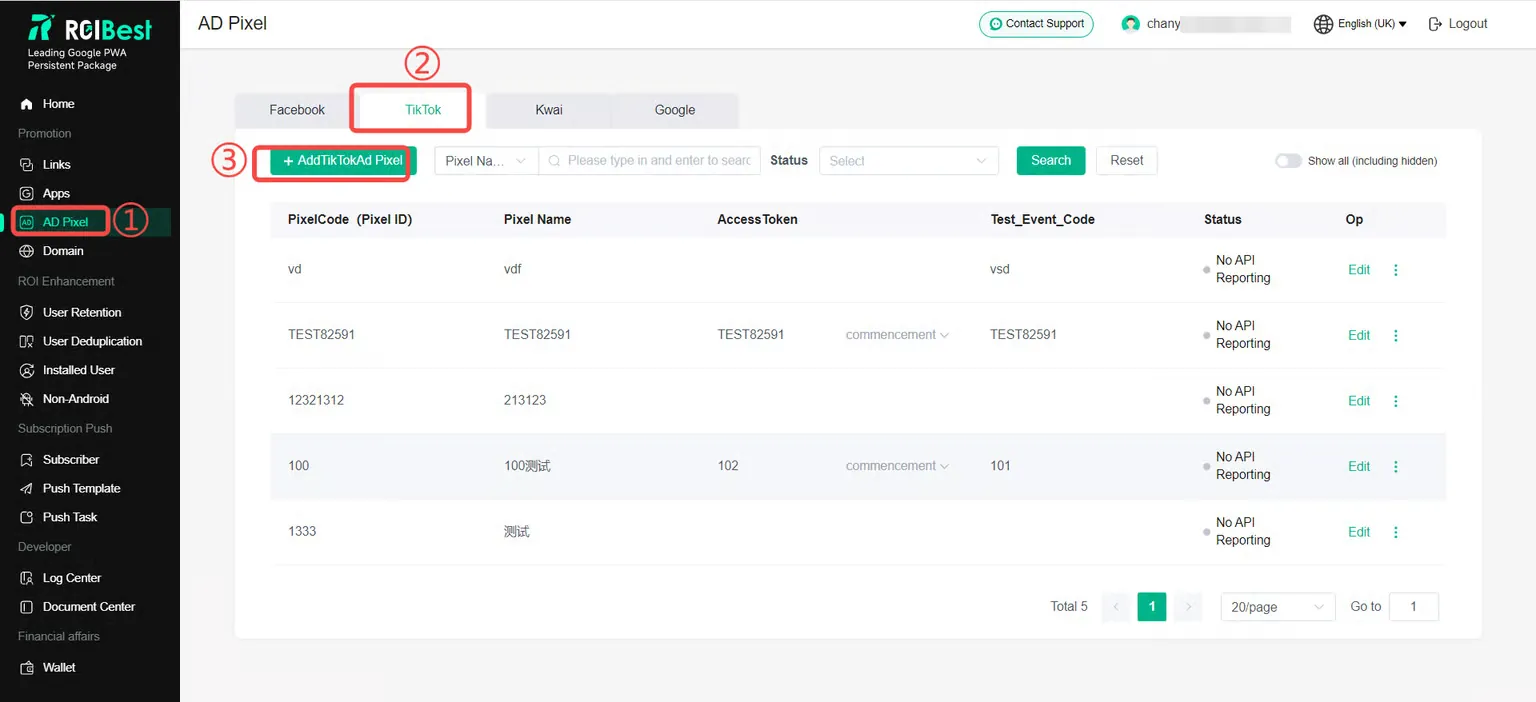
Click [AD Pixel ] to enter the page, select [TikTok] and click [+Add TikTok Advertising Pixel] to enter the information filling page;
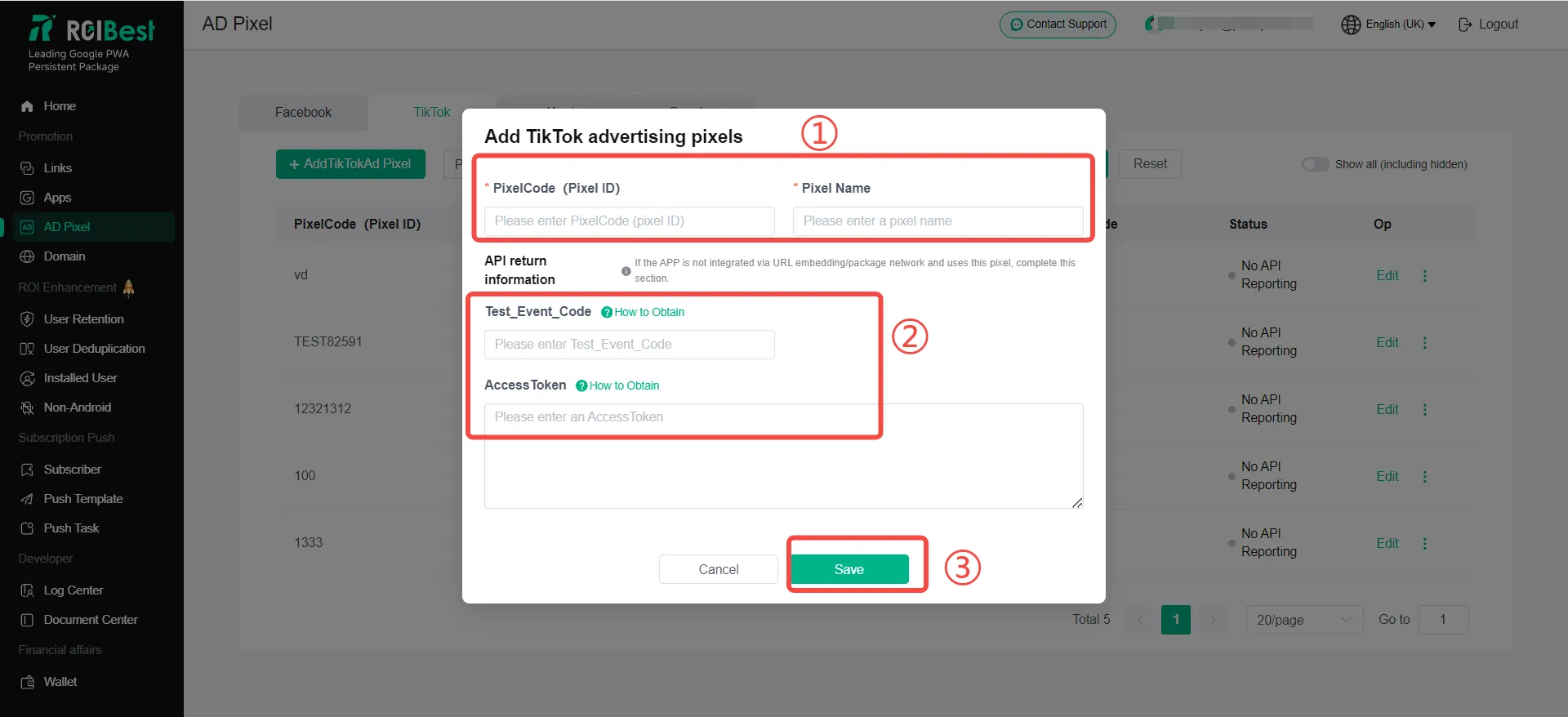
Compare the TikTok advertising backend, fill in the advertising pixel information, and click [Save]
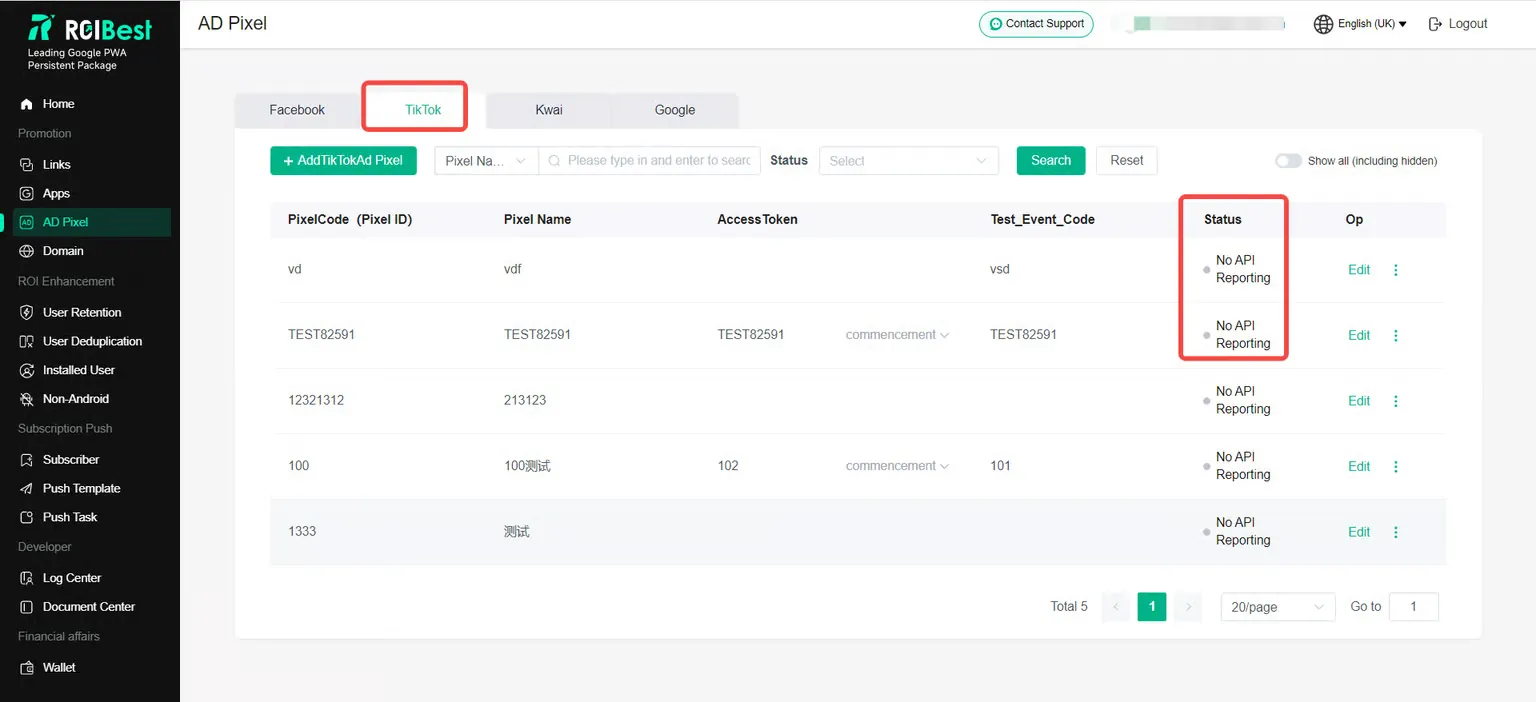
**Step 2 -**Check API reporting status
Package Network Integration: It is normal that no API is reported, just make sure the Pixel Code (Pixel ID) is filled in correctly;
Self-developed H5 project package (zip): If it shows that there is no API report, please check whether the Pixel Code (Pixel ID), Test_Event_Code, and Access Token are filled in. If there is any error, edit it and modify it to be correct. Please be careful not to leave any spaces when filling in;
Kwai
This operation requires configuring Kwai PixelCode first. If you already know the steps, you can directly follow the steps below. If you are not sure, please click Kwai How to Get PixelCode Tutorial to configure it;
Step 1 - Add kwai Ad Pixel
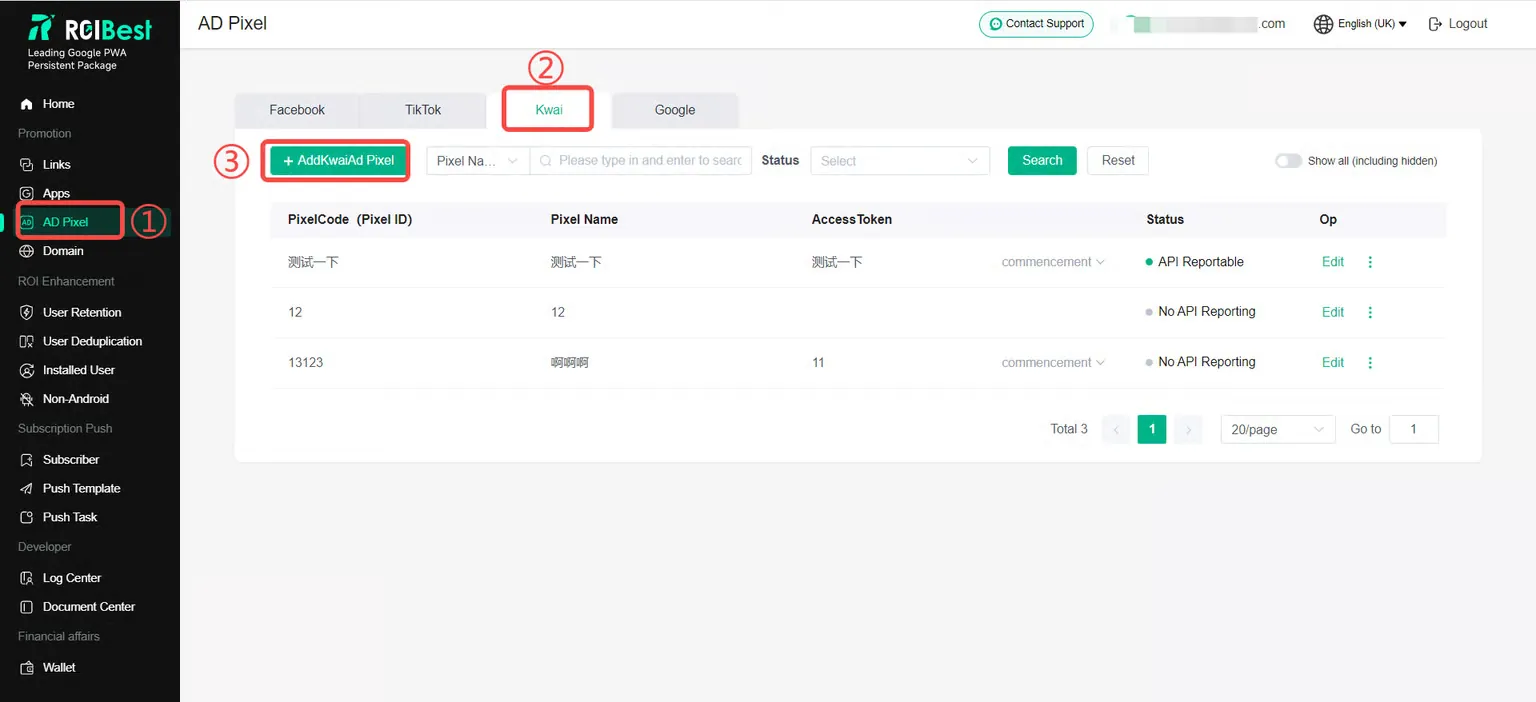
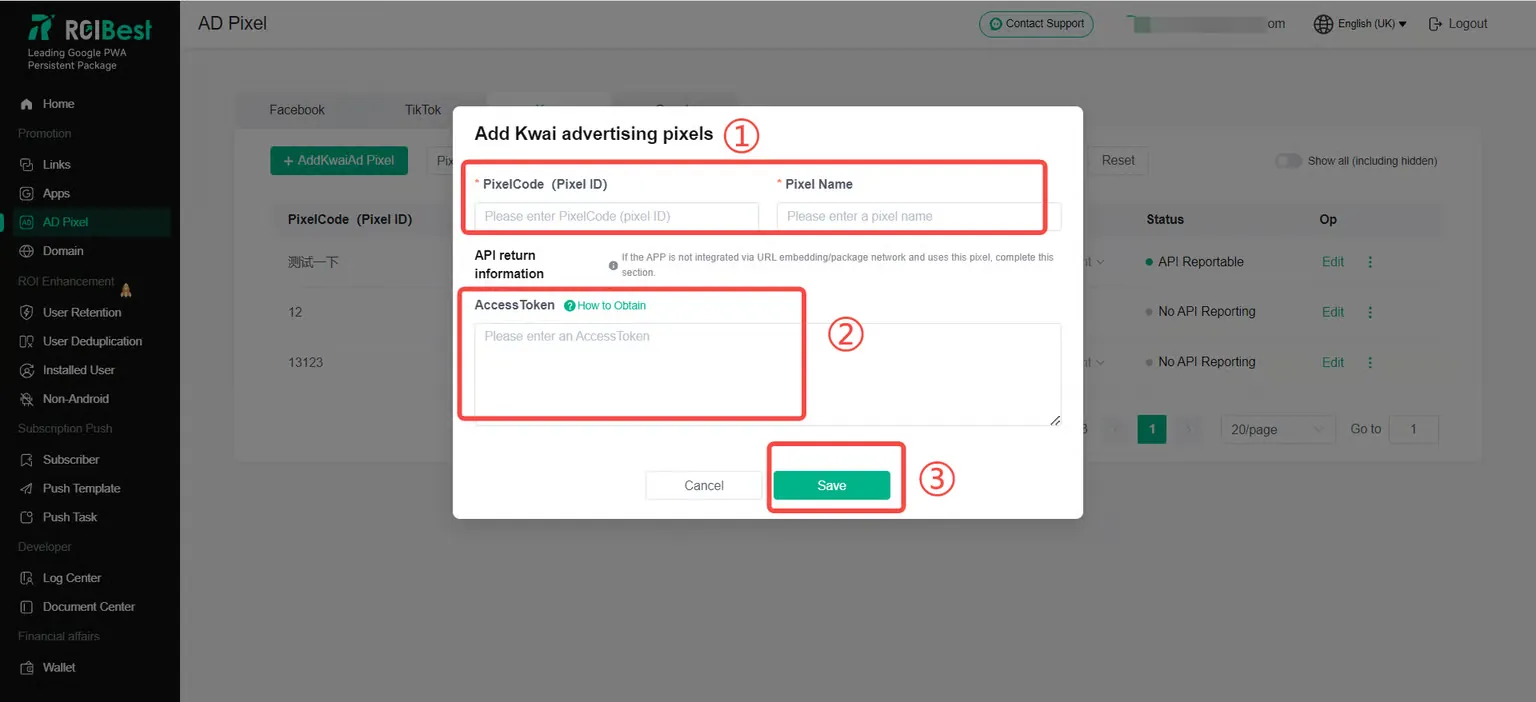
Click [ AD Pixel ] to enter the page, select [kwai] and click [+Add kwai advertising pixel] to enter the information filling page;
Compare the kwai advertising background, fill in the advertising pixel information, and click [Save]; customers who choose the association method as [Kwai Pixel] in the kwai background do not need to fill in the Access Token, and customers who choose the association method as [Event API] need to fill in the Access Token;
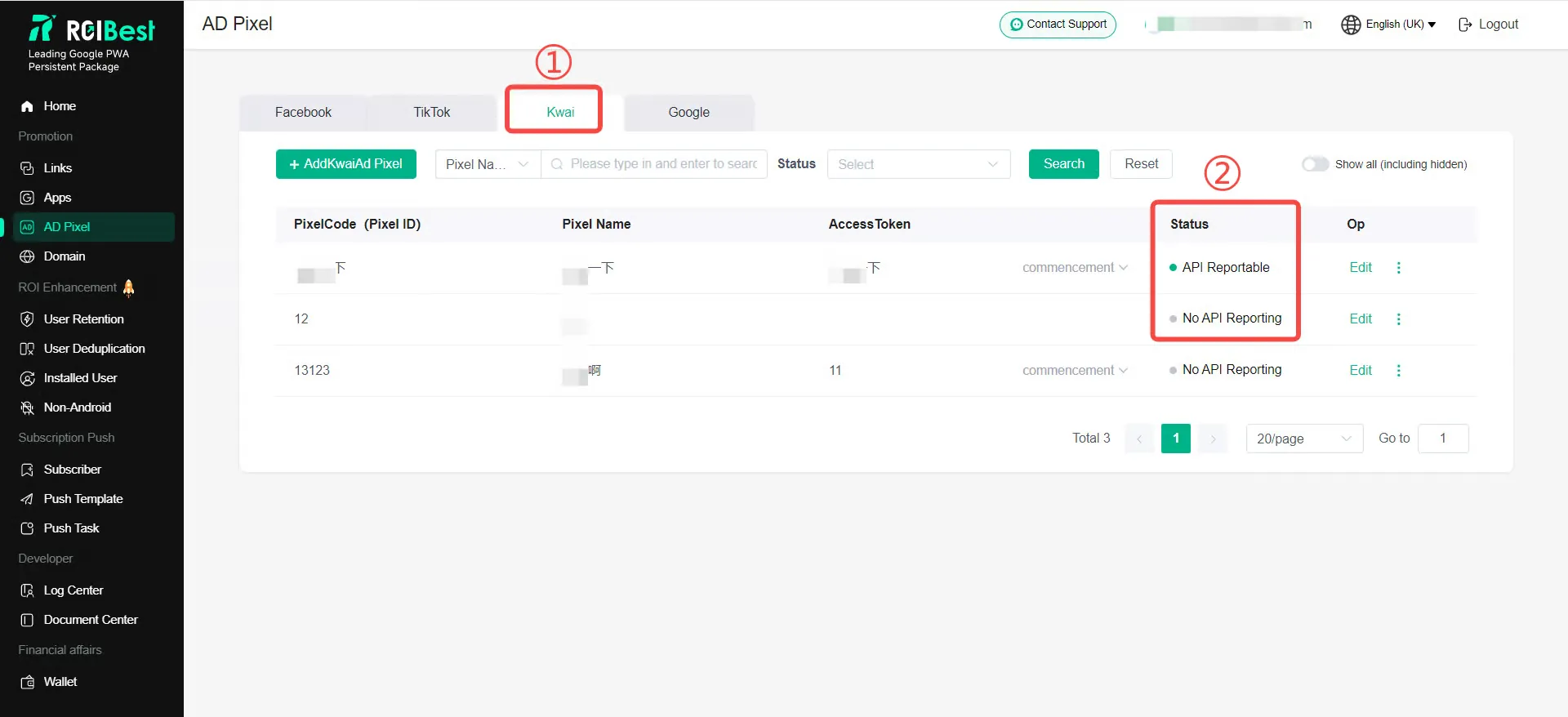
**Step 2 -**Check API reporting status
Package network access: It is normal that no API is reported, just make sure the Pixel Code (Pixel ID) is filled in correctly;
Self-developed H5 project package (zip): If there is no API report, please check whether the Pixel Code (Pixel ID) and Access Token are filled in. If there is any error, edit it and correct it. Please be careful not to leave any spaces when filling in;
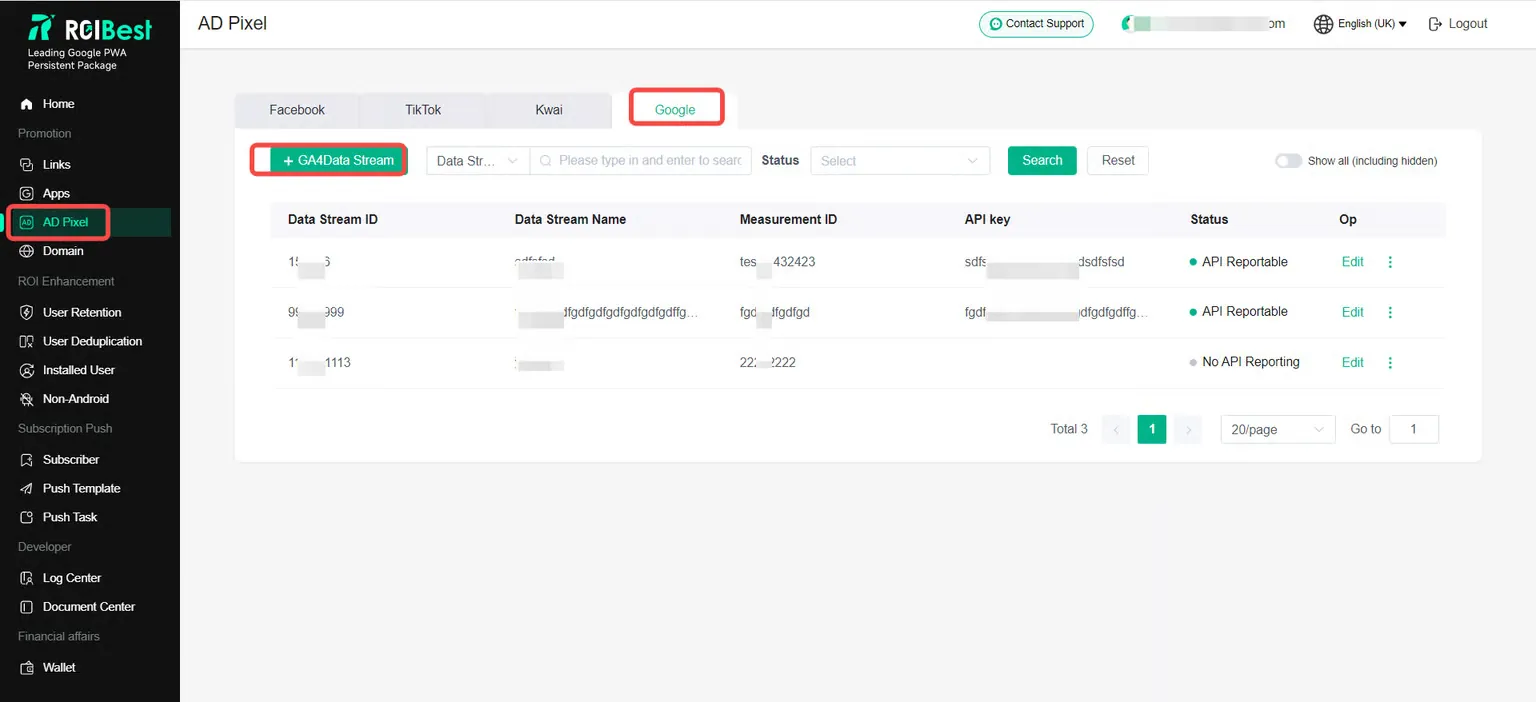
Step 1 - Add GA4 data stream
Click [AD Pixel ] to enter the page, select [Google] and click [+GA4 Data Flow] to enter the information filling page;
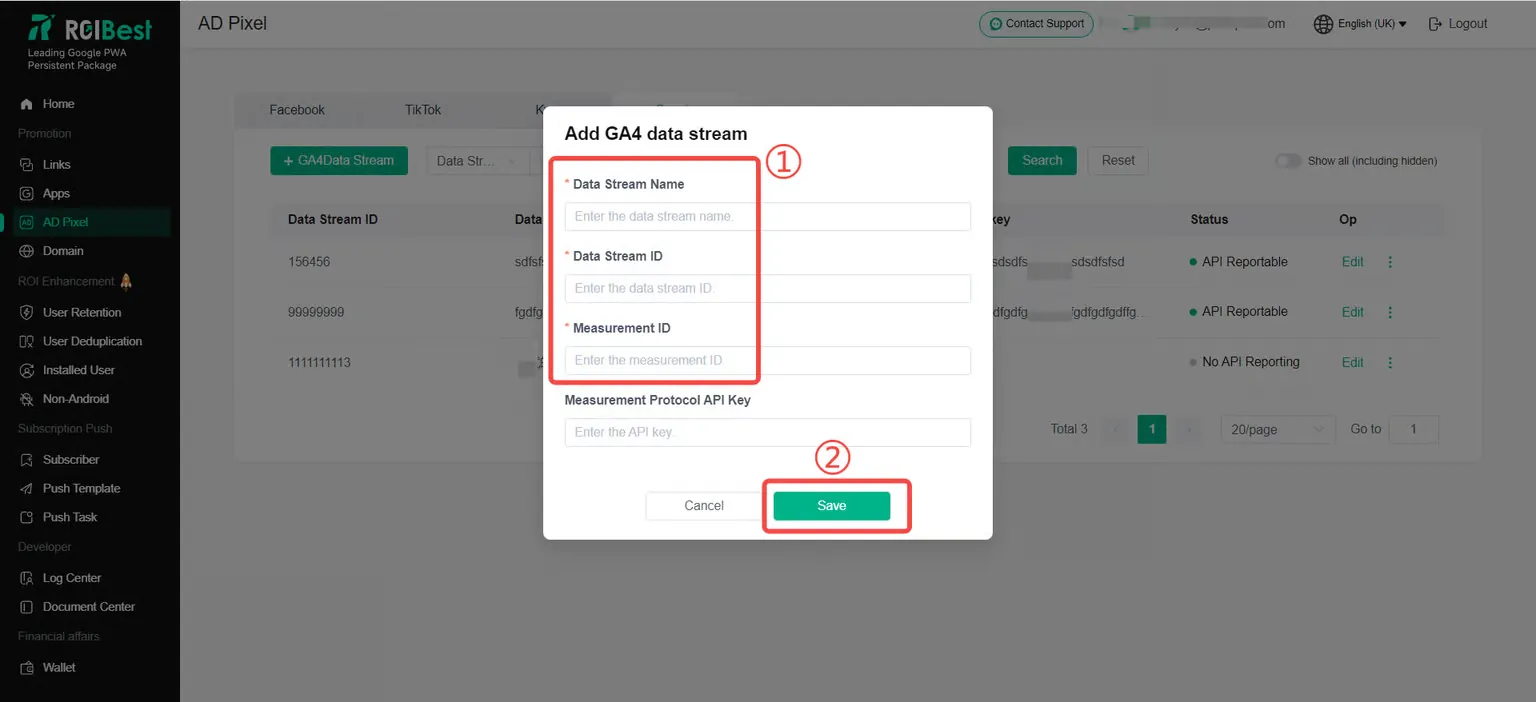
Compare the Google backend, complete the required information such as data flow name, data flow ID, measurement ID, etc., and click [Save];
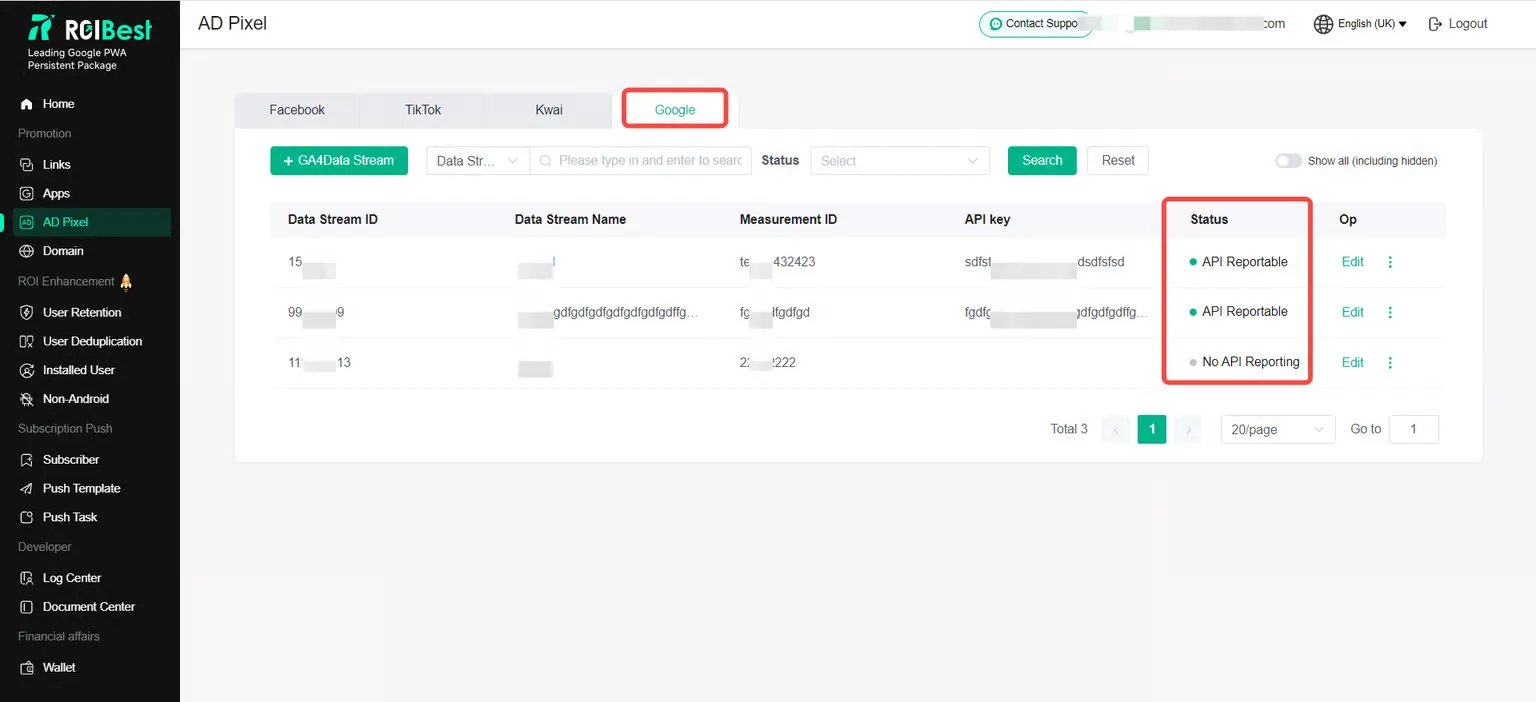
**Step 2-**Check API reporting status
Step 3 - Search historically created data
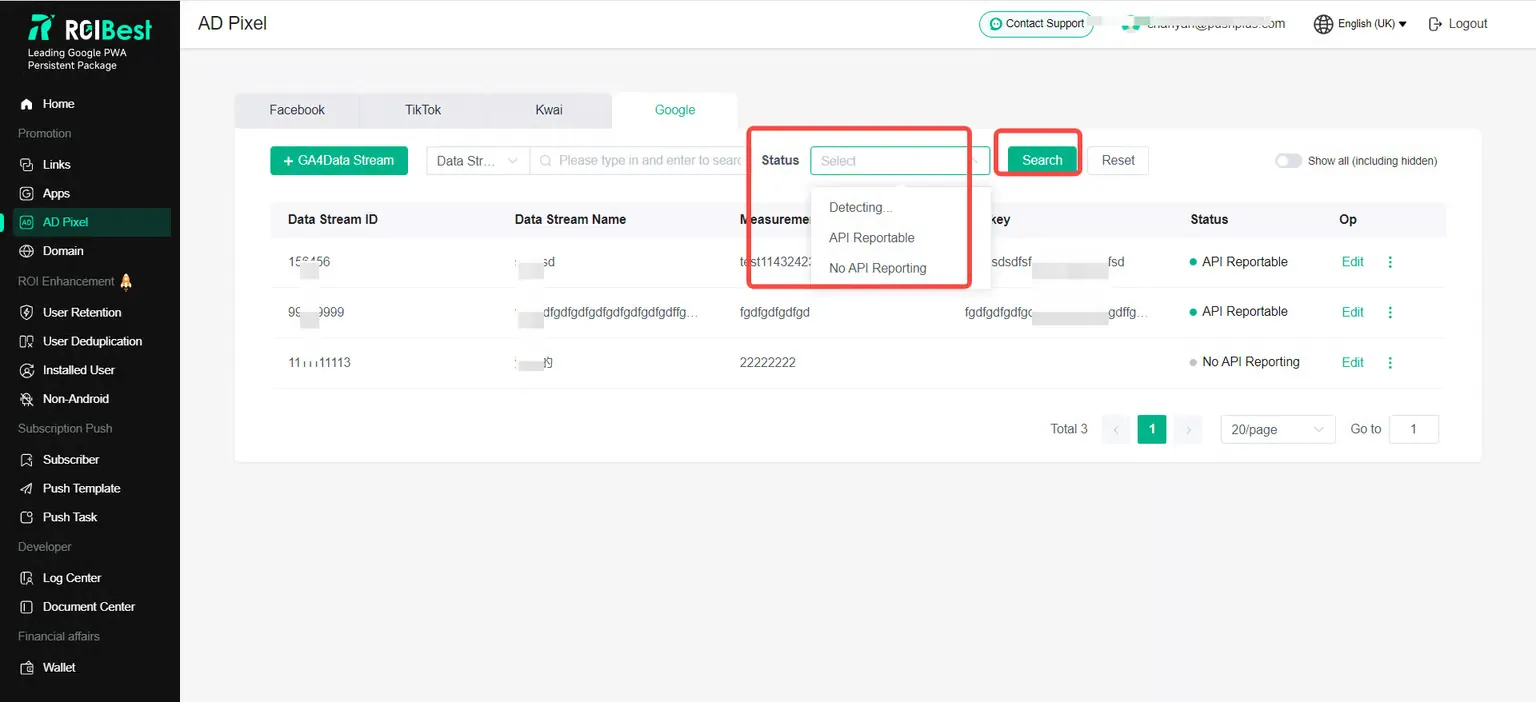
Select [Data Stream Name] or [Data Stream ID] and press Enter directly or click [Search] to view historical created data flow data;
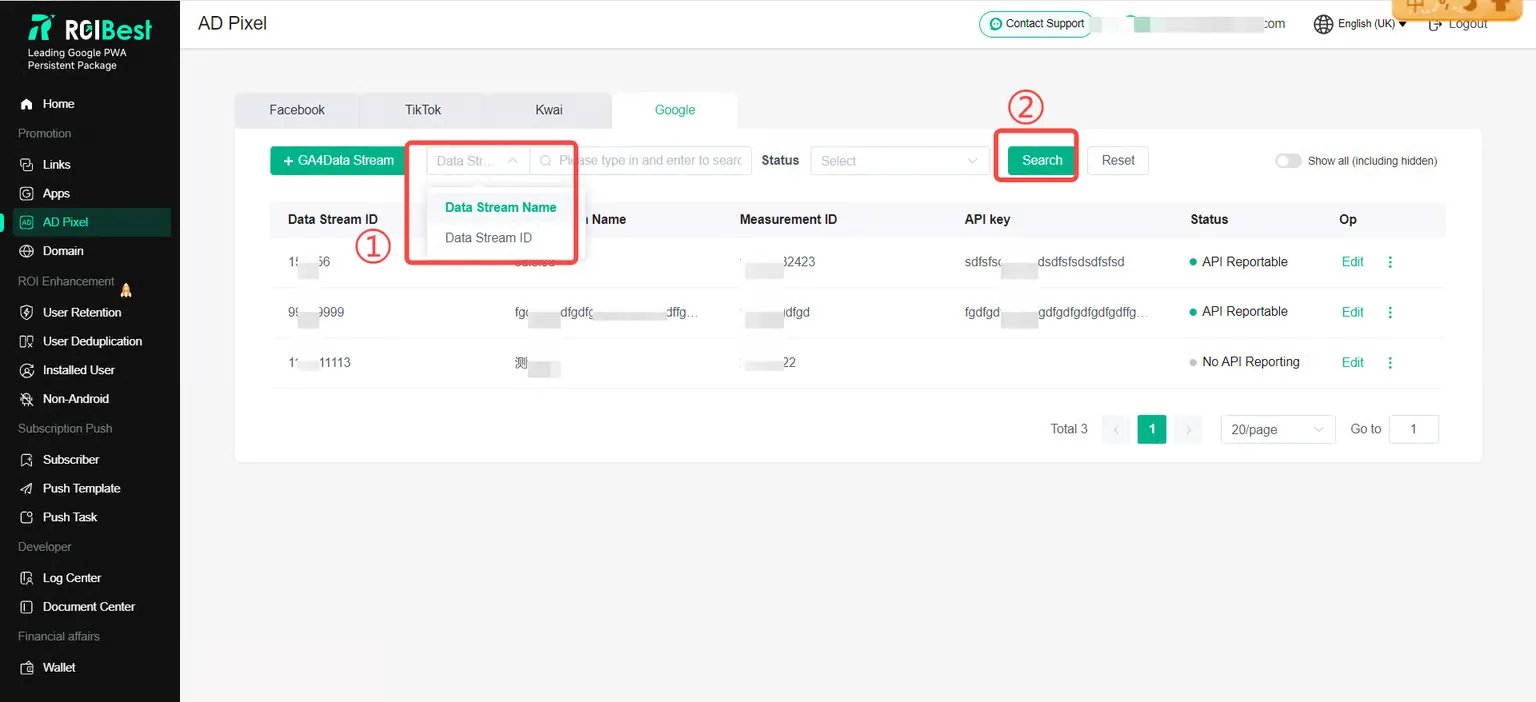
In the status bar, select [Detecting], [API Reportable], [No API Reporting], etc., and click [Search] to find the data flow of the corresponding status.