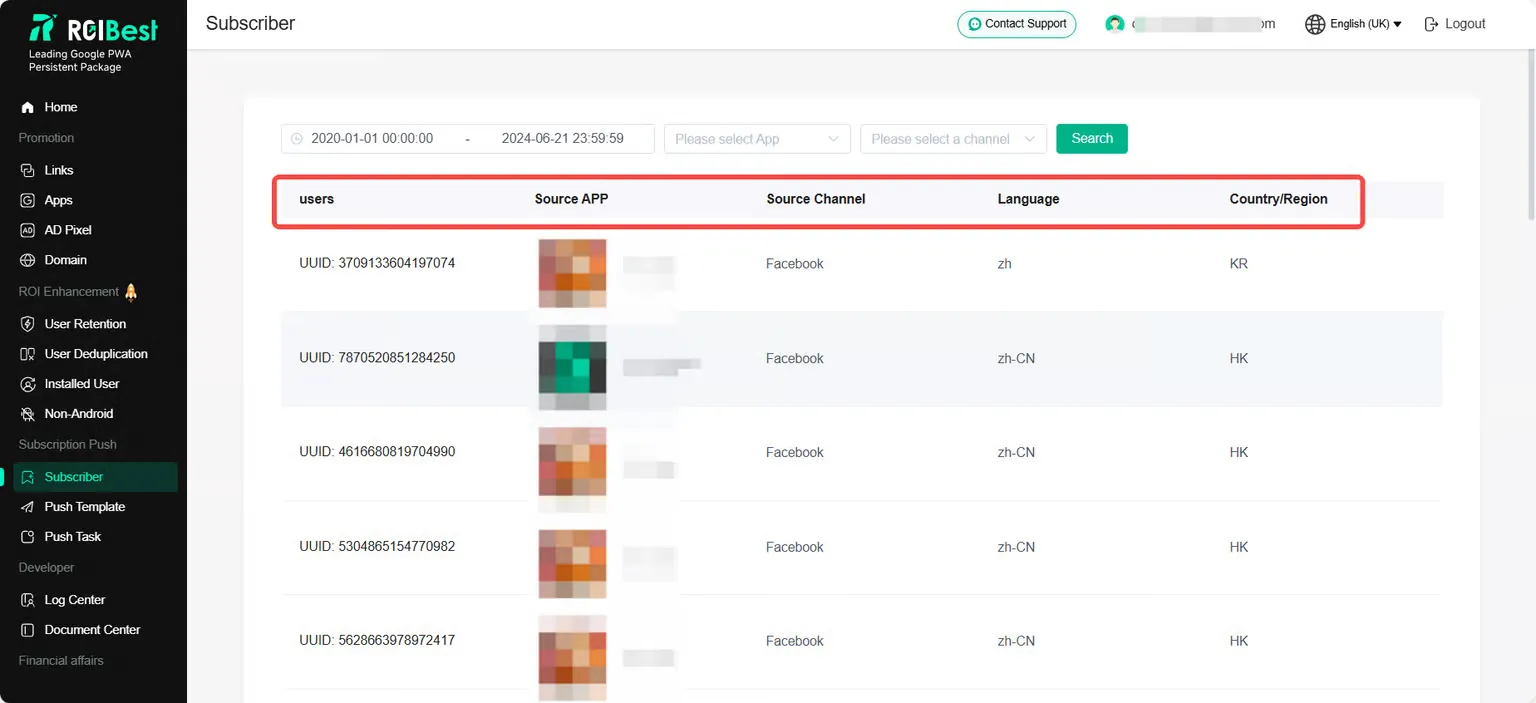

Subscription Push
Push customized message content to users who have agreed to subscribe to message notifications;
Step 1 - Create a push template
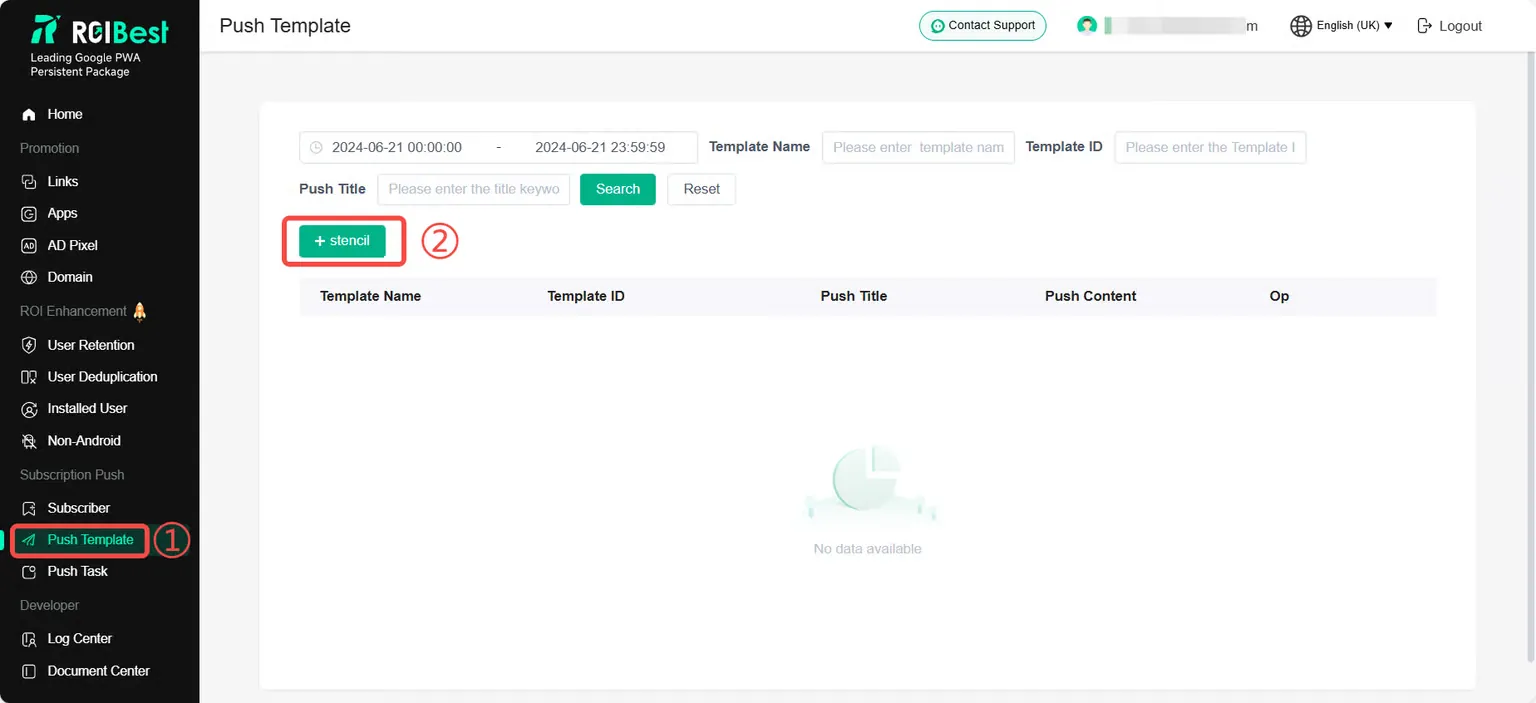
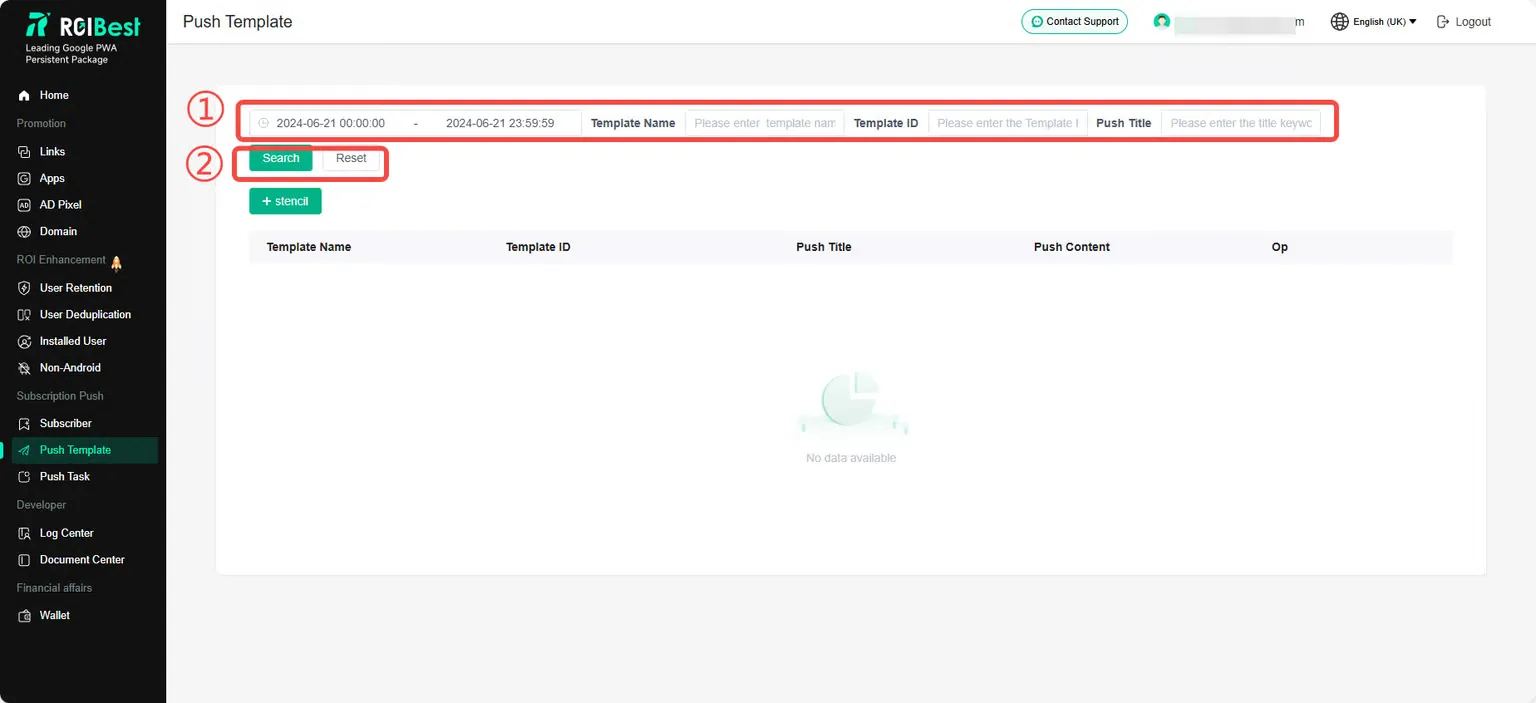
Select the [Push Template] page and click [+ stencil];
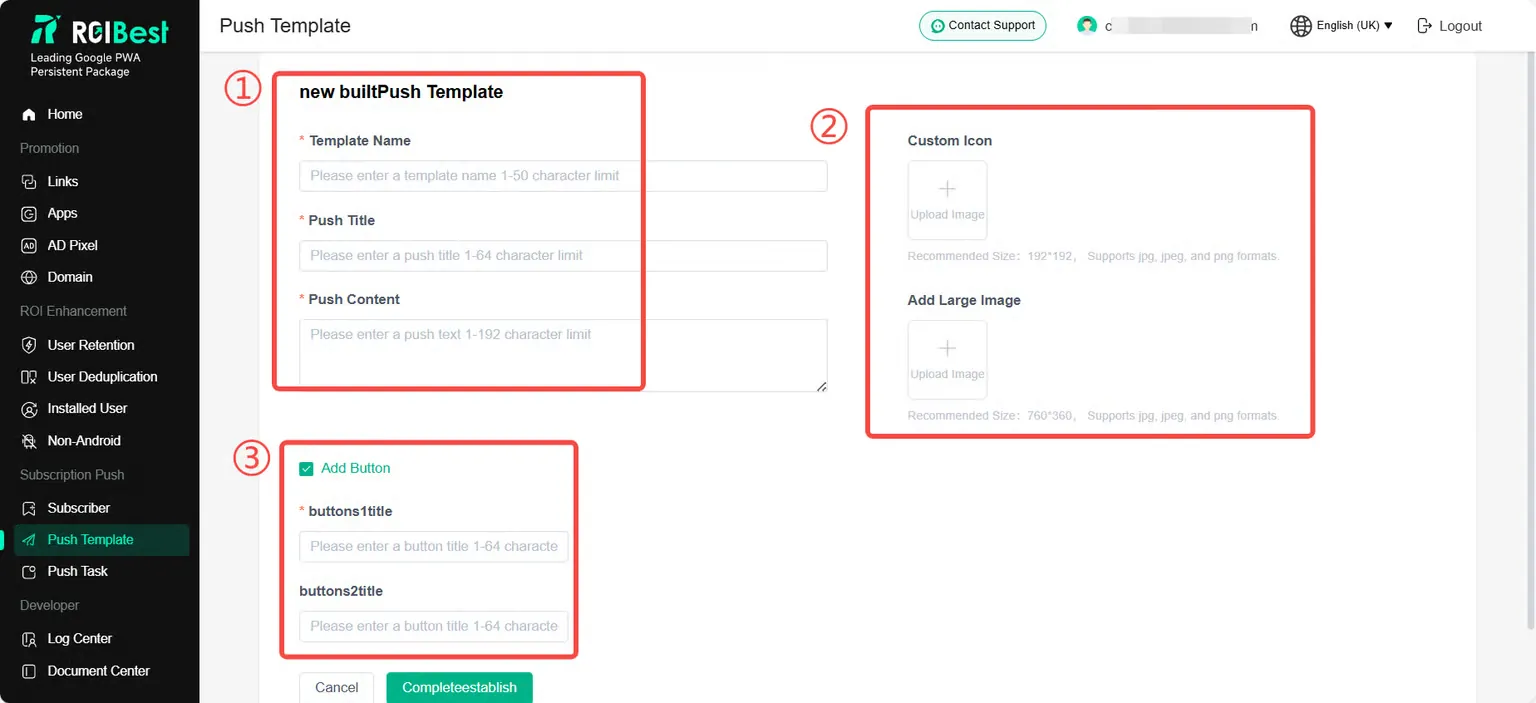
Fill in the push template according to your needs. If you need to add a push button, select [Add Button] and set the button title;
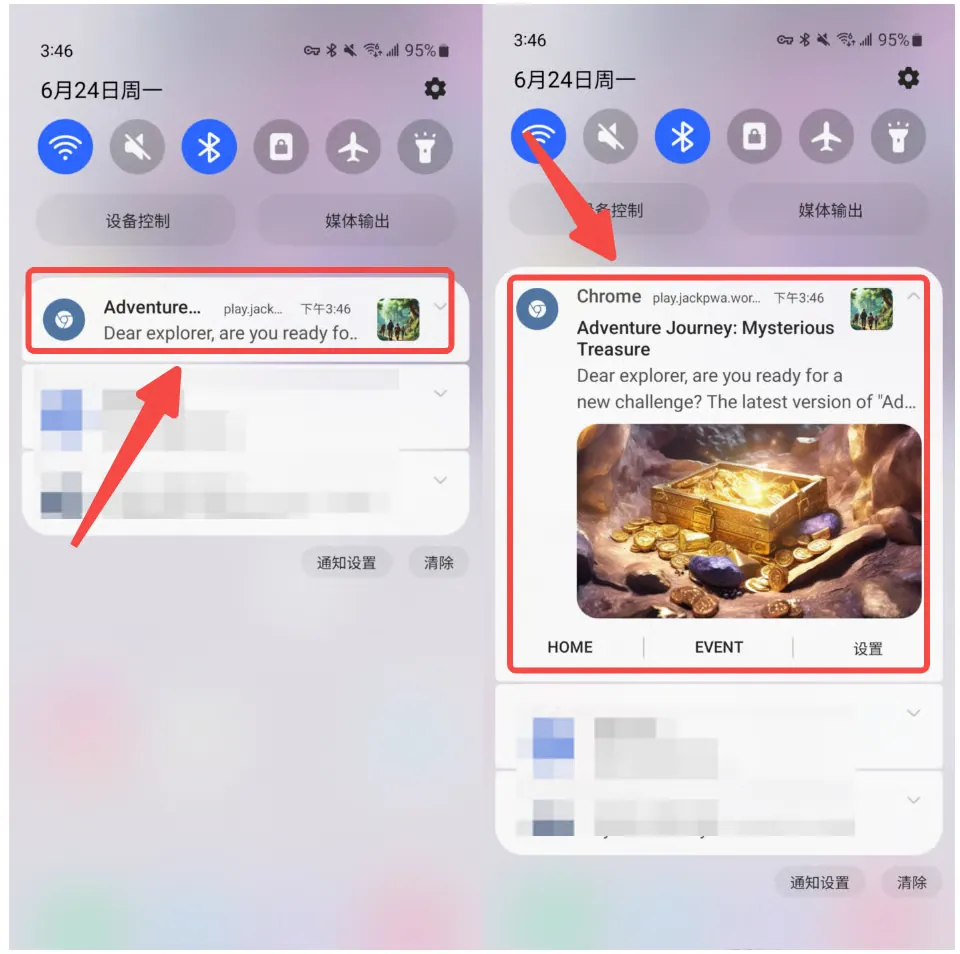
Example of background settings for Push Template
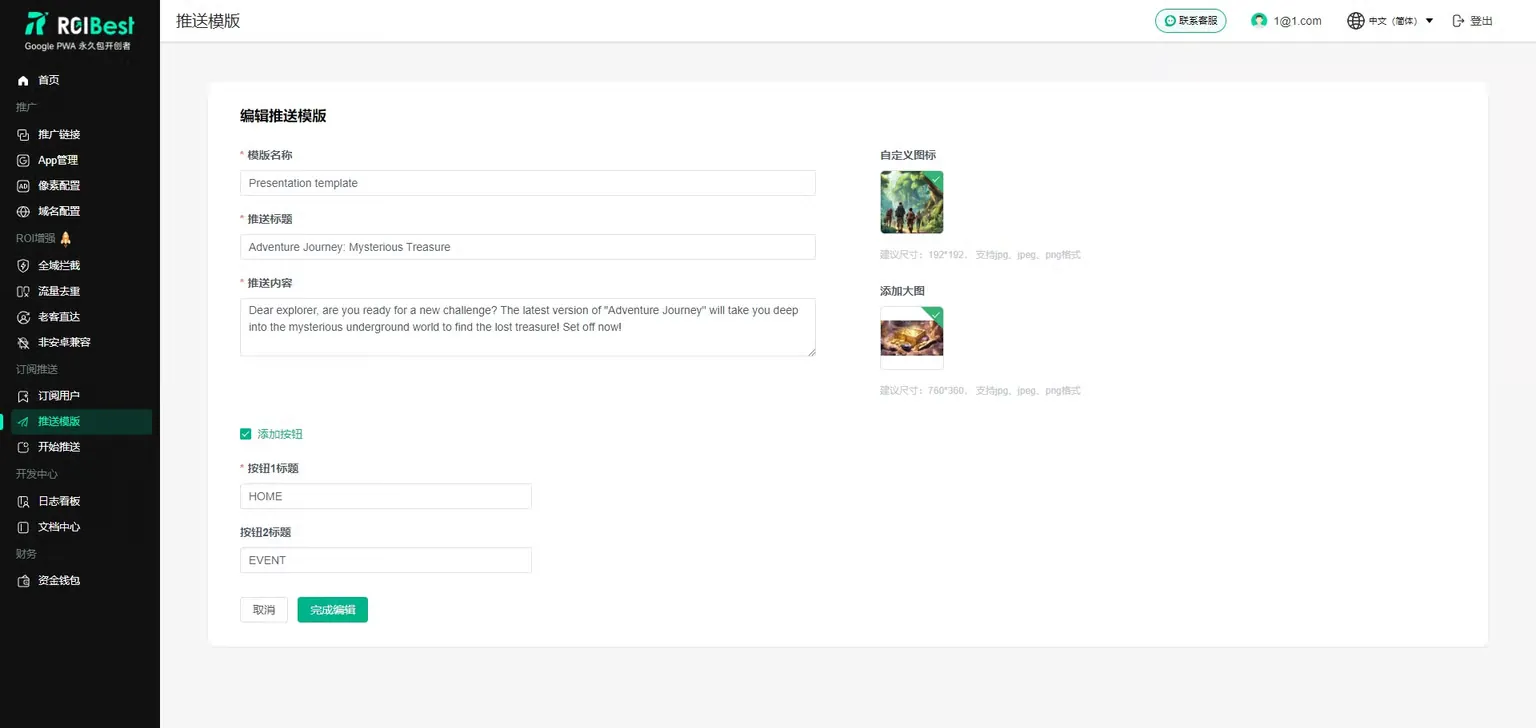
Mobile push display effect
If you need to search for push templates created in the past, you can enter the time column, template name, template ID, push title and other information as needed, and click [Search];
Step 2 - Push Task
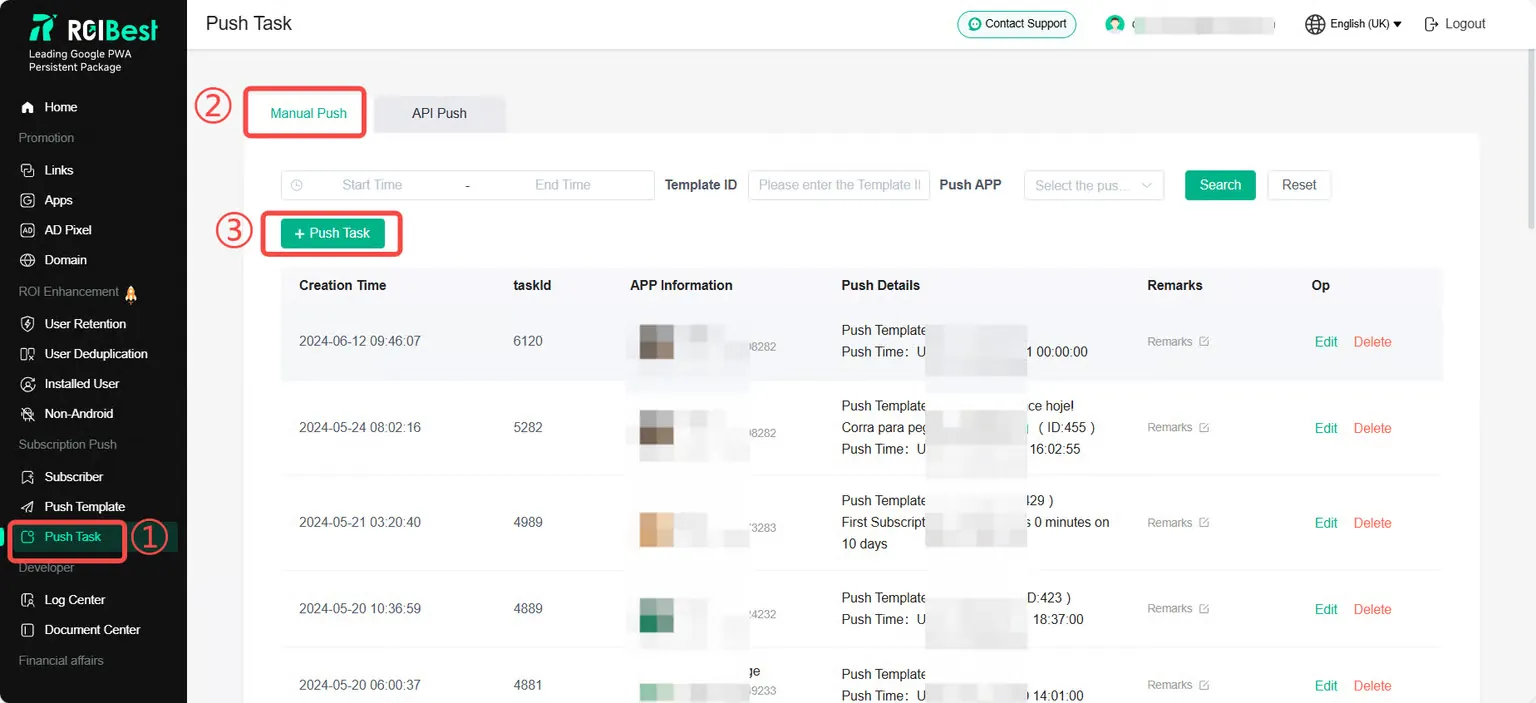
Select the [Push Task] page, select [Manual Push], and click [+Push Task];
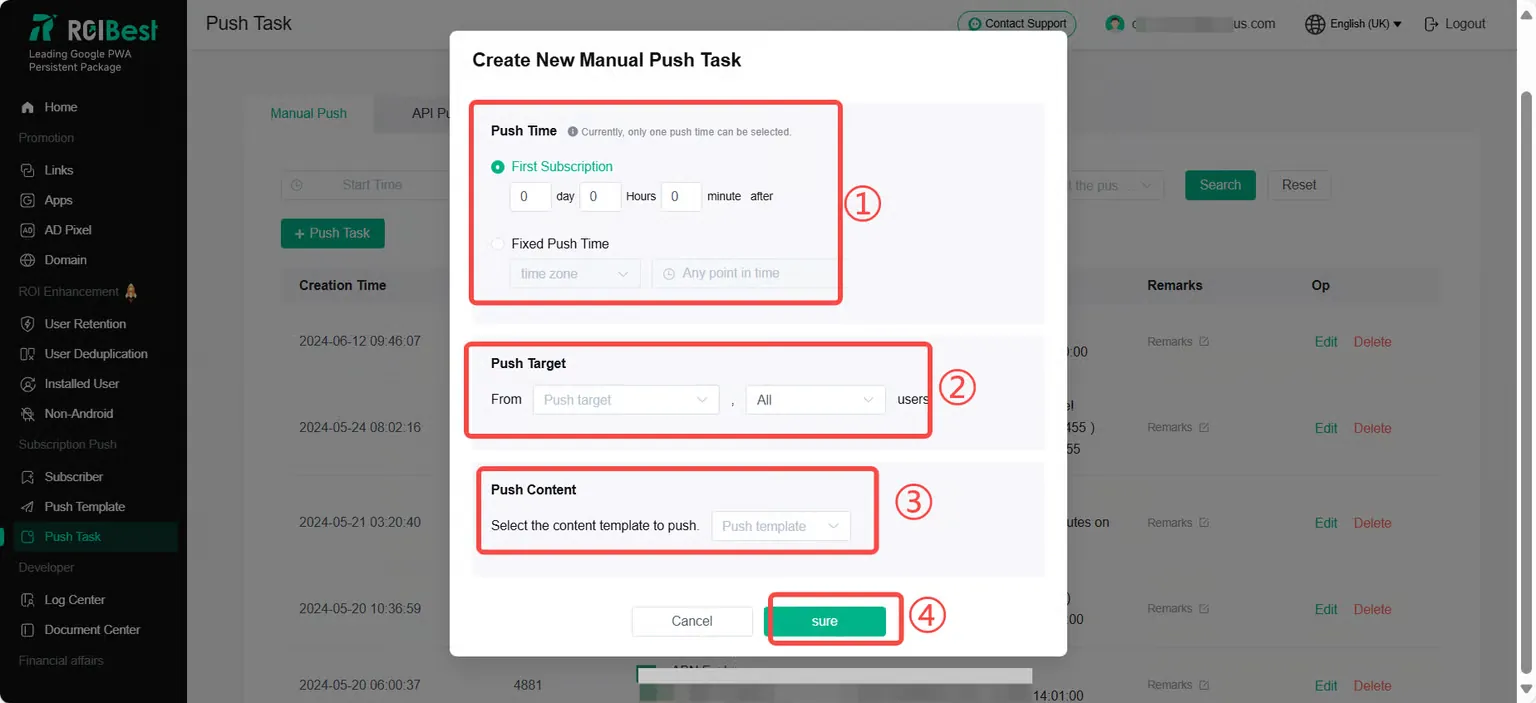
According to the push requirements, select [Push Time], [Push Target], [Push Content], and click [Confirm];
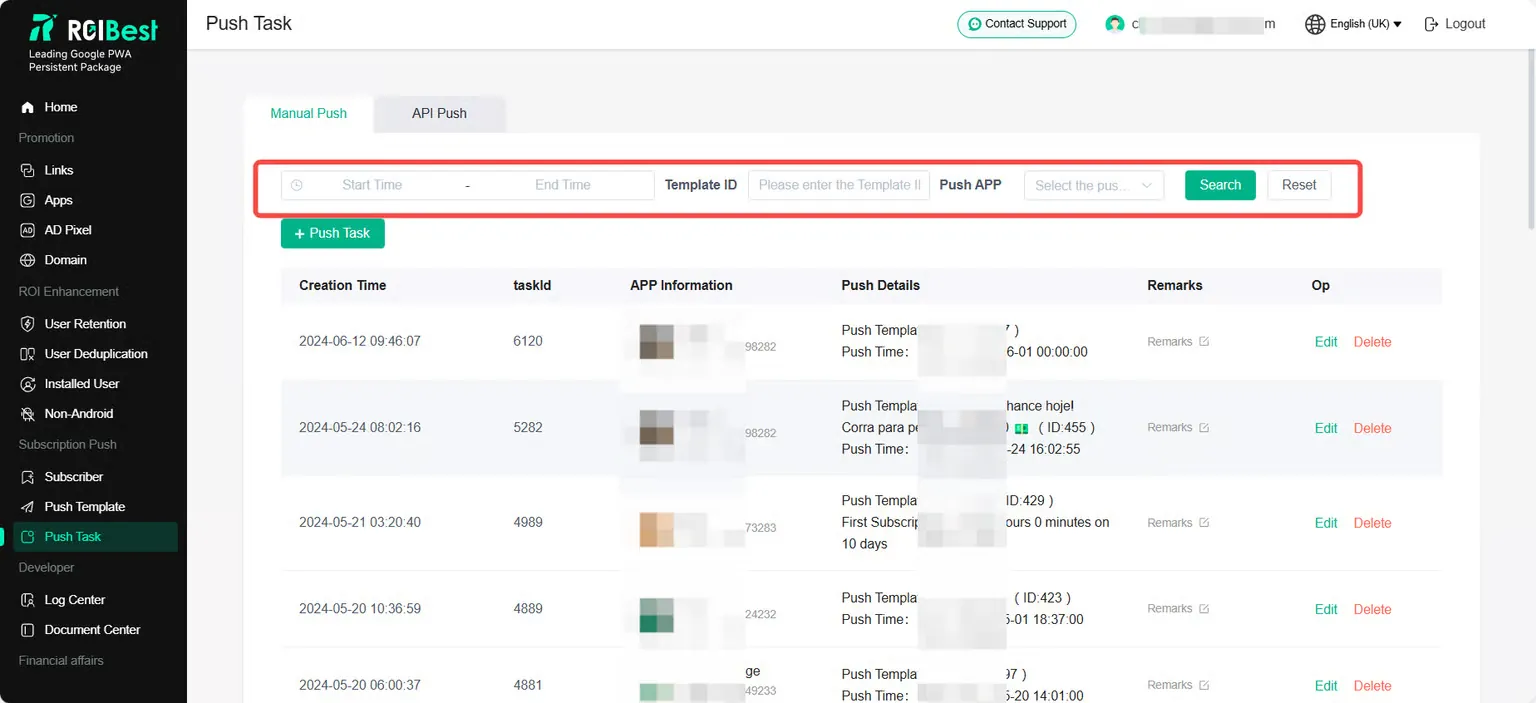
If you need to search for push tasks created in the past, you can enter the time range, template ID, push APP, etc. as needed, and click [Search];
API Push
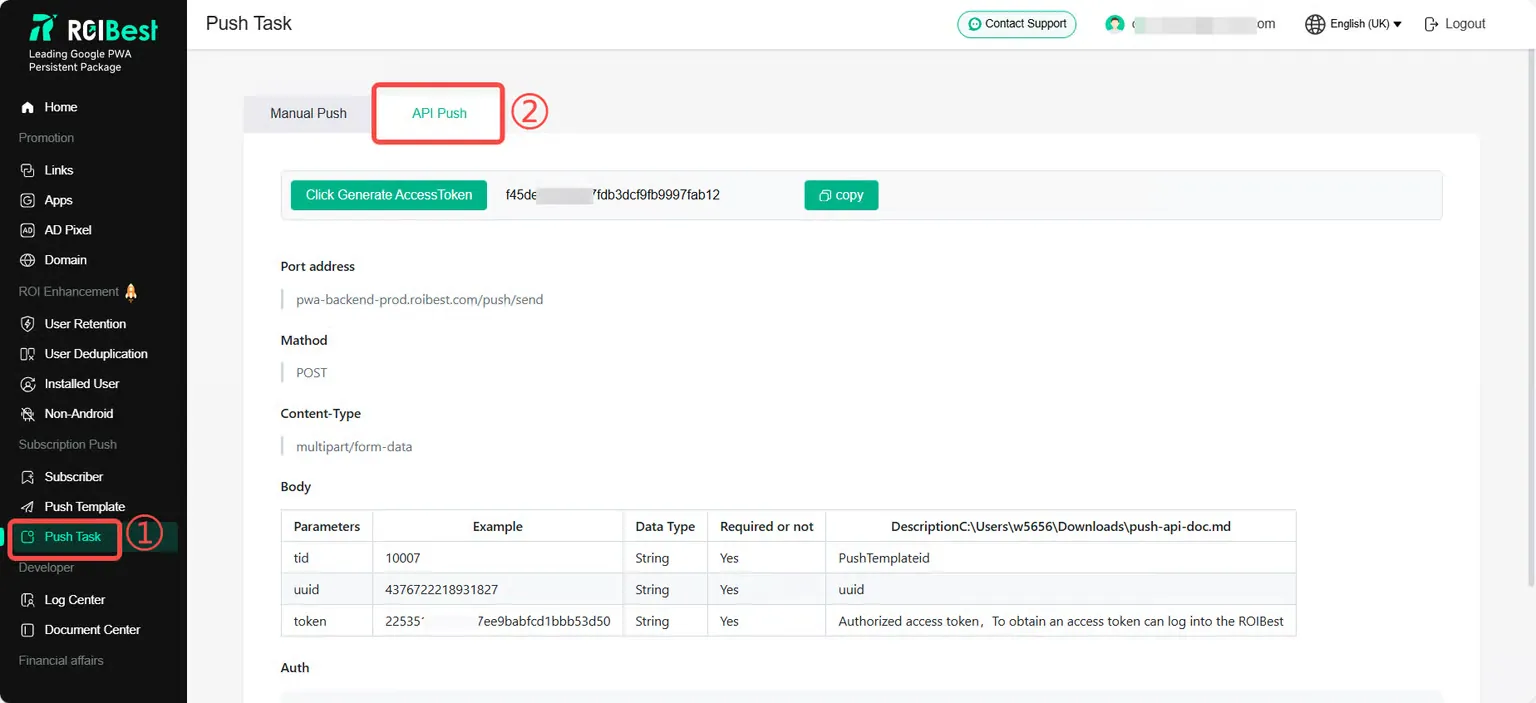
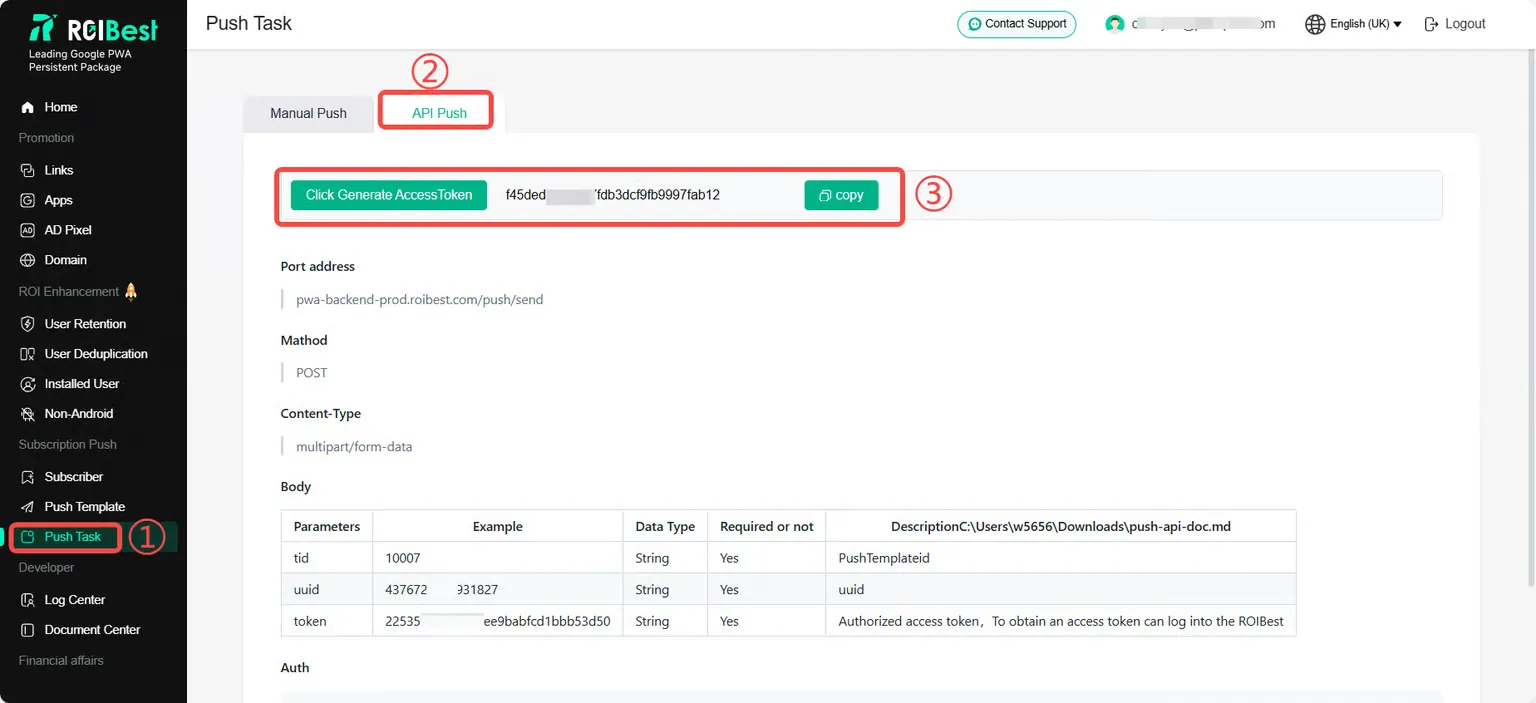
Select [Push Task], select [API Push], and configure according to the prompts on the page;
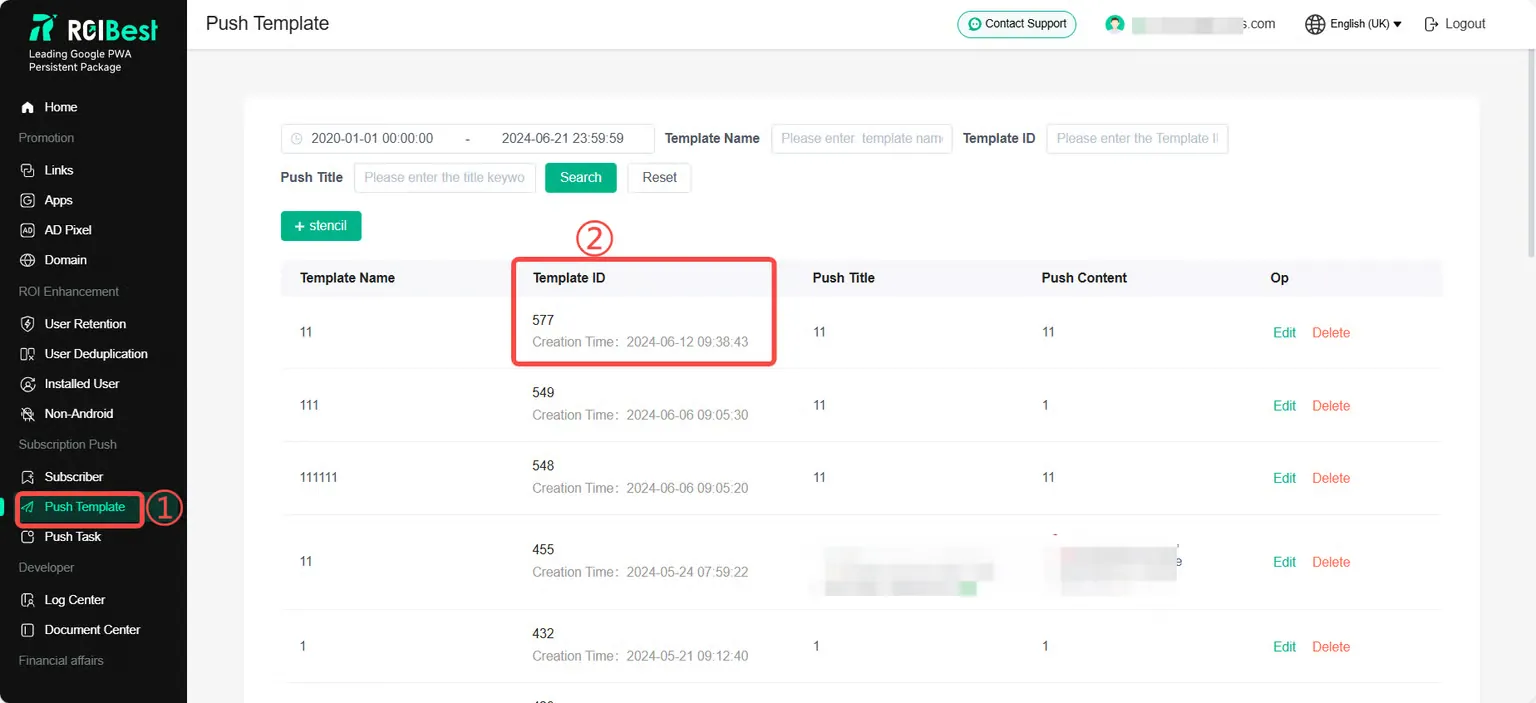
How to get tid?
Select [Push Template] and query the template ID. For example, "577" in the figure is the template ID.
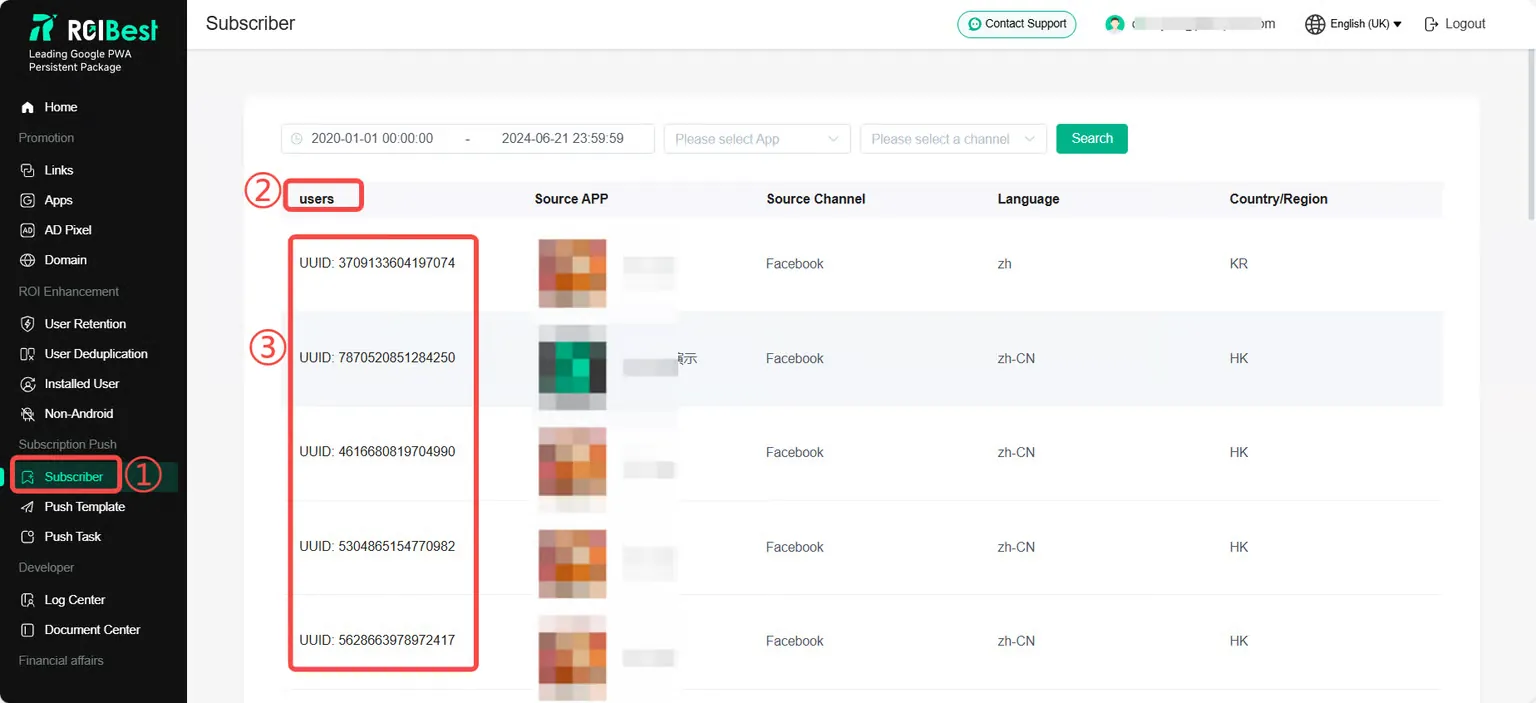
How to get uuid?
Select [Subscriber] and find the UUID of the corresponding user in the [Users] tab;
How to get a token?
Select [Push Task]], [API Push], [Click to Generate Access Token];
Step 3 - Push TaskSubscribed User Query
If you need to find the historical subscription information of users, you can search by time, APP, delivery channel, etc.
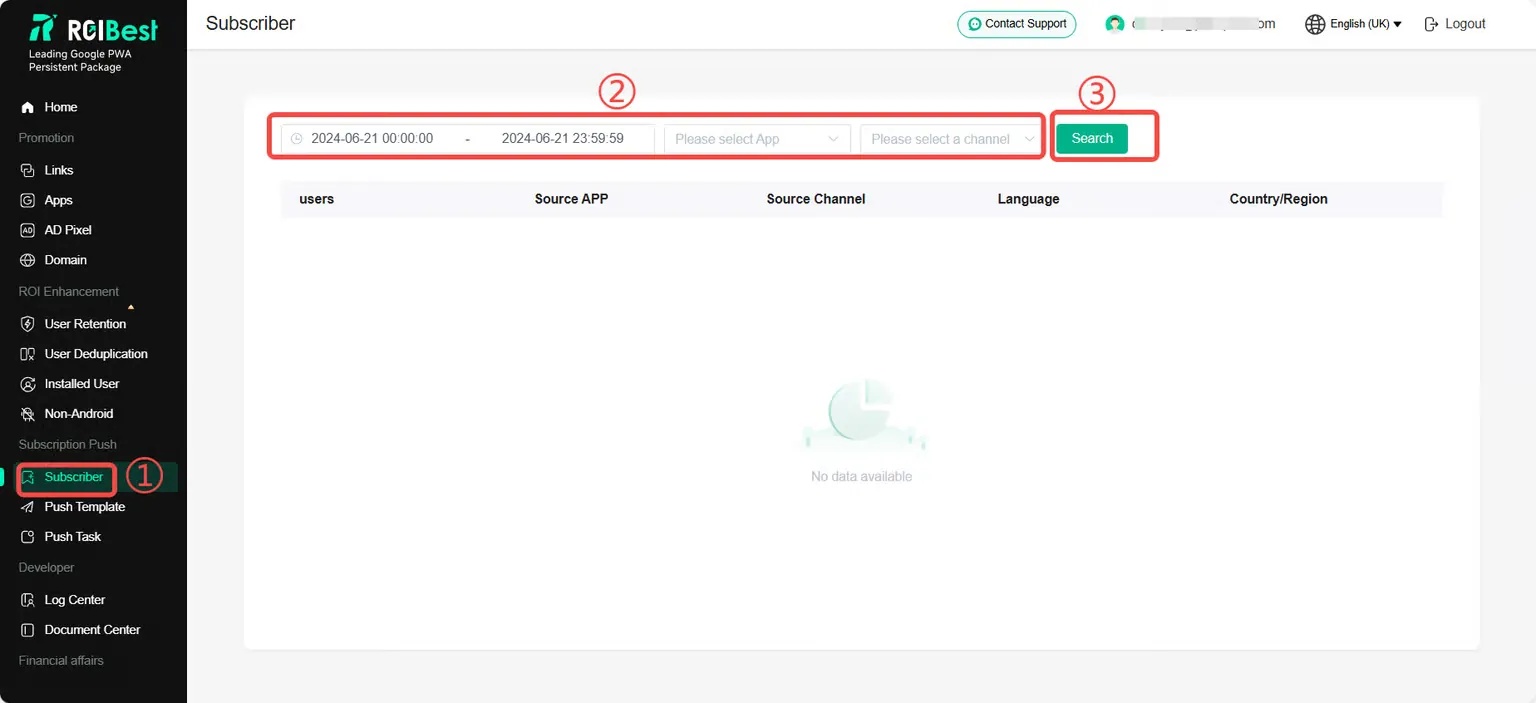
List of historical subscribers, including the subscriber ID, visited APP, source of distribution channel, language, region, etc.