
Facebook FAQ
How to obtain PixelCode/Test Event Code/Access Token from Facebook?
Step 1 - Log in to Facebook Ads
Facebook backend login URL: https://adsmanager.facebook.com , please log in with your business promotion account;
Step 2 - Create and obtain PixelCode
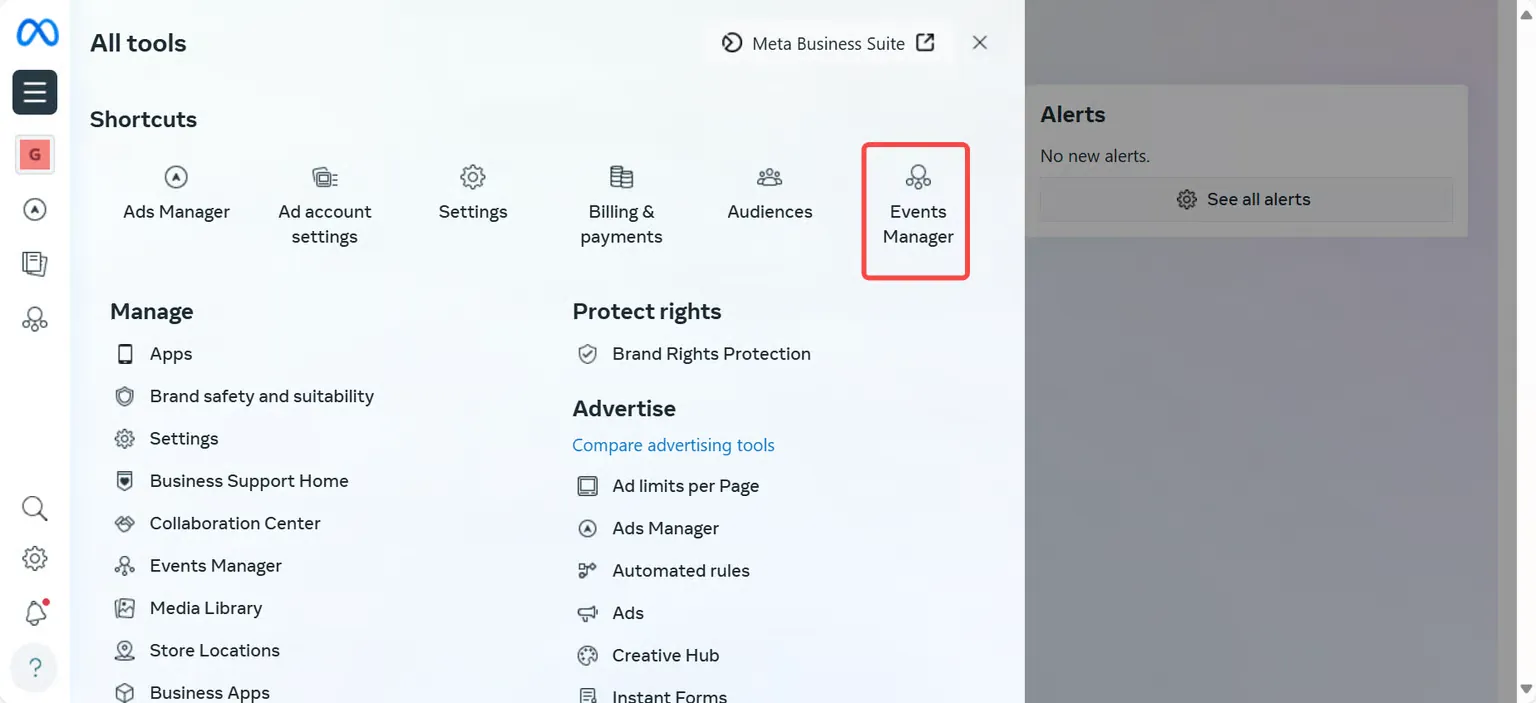
Enter the ad management tool, click [Events manager];
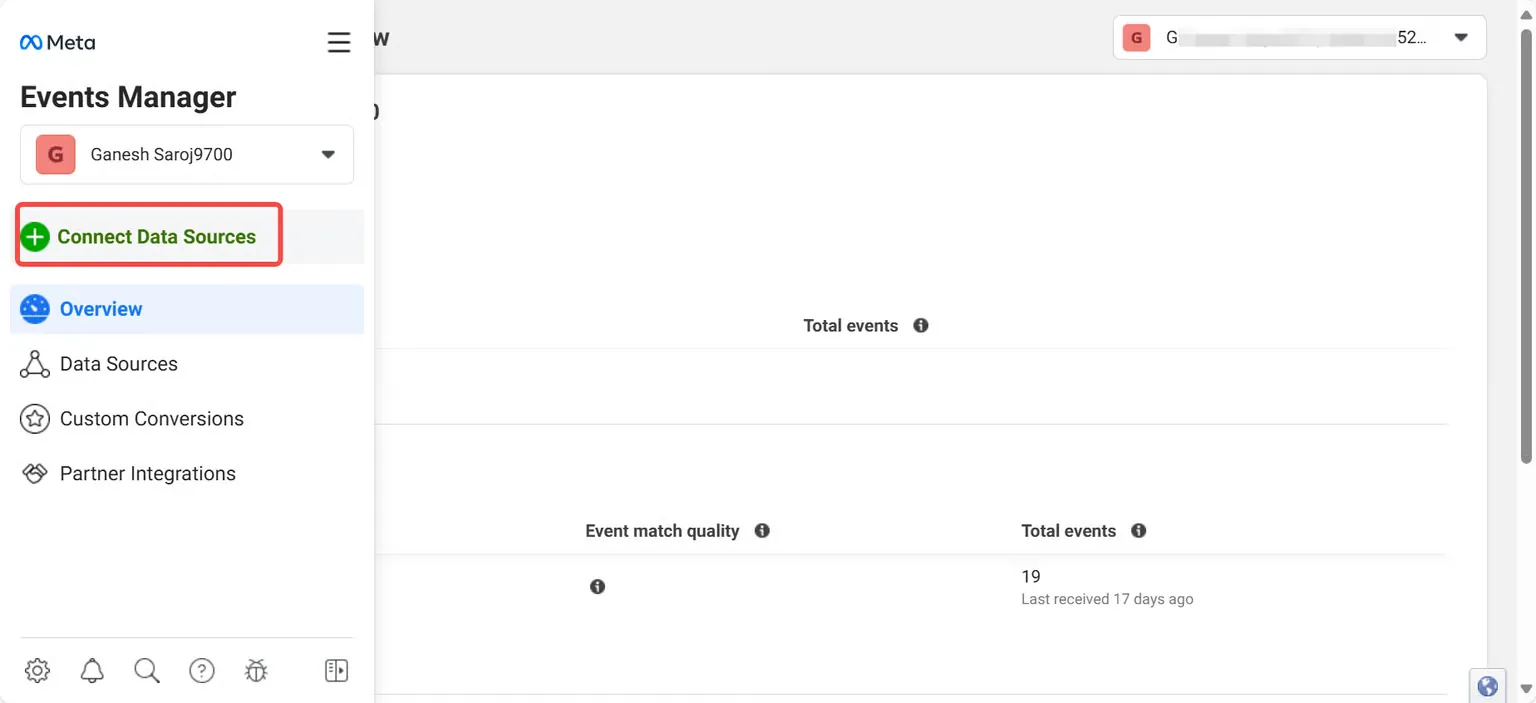
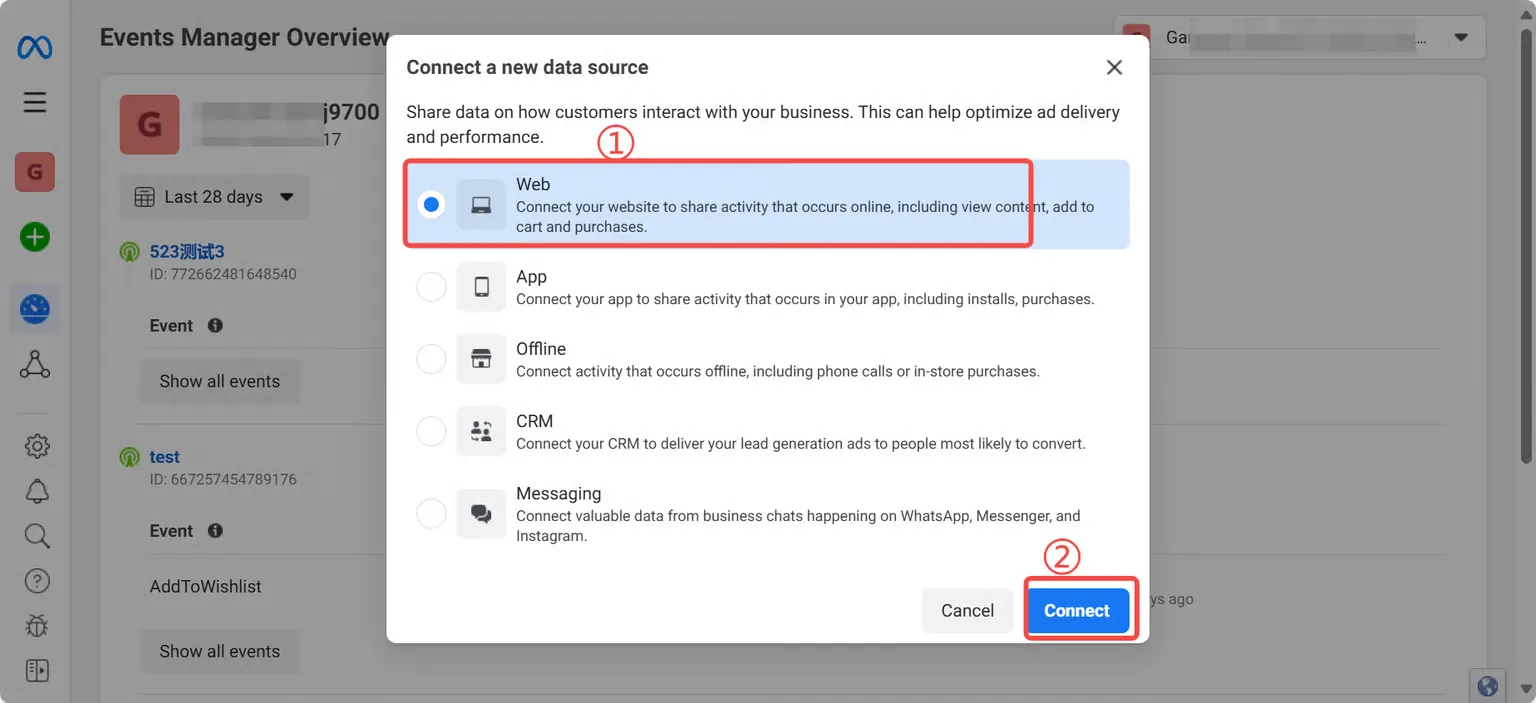
Select [+connect Data Source] in the left column;
Select [Website] and click [Connect].
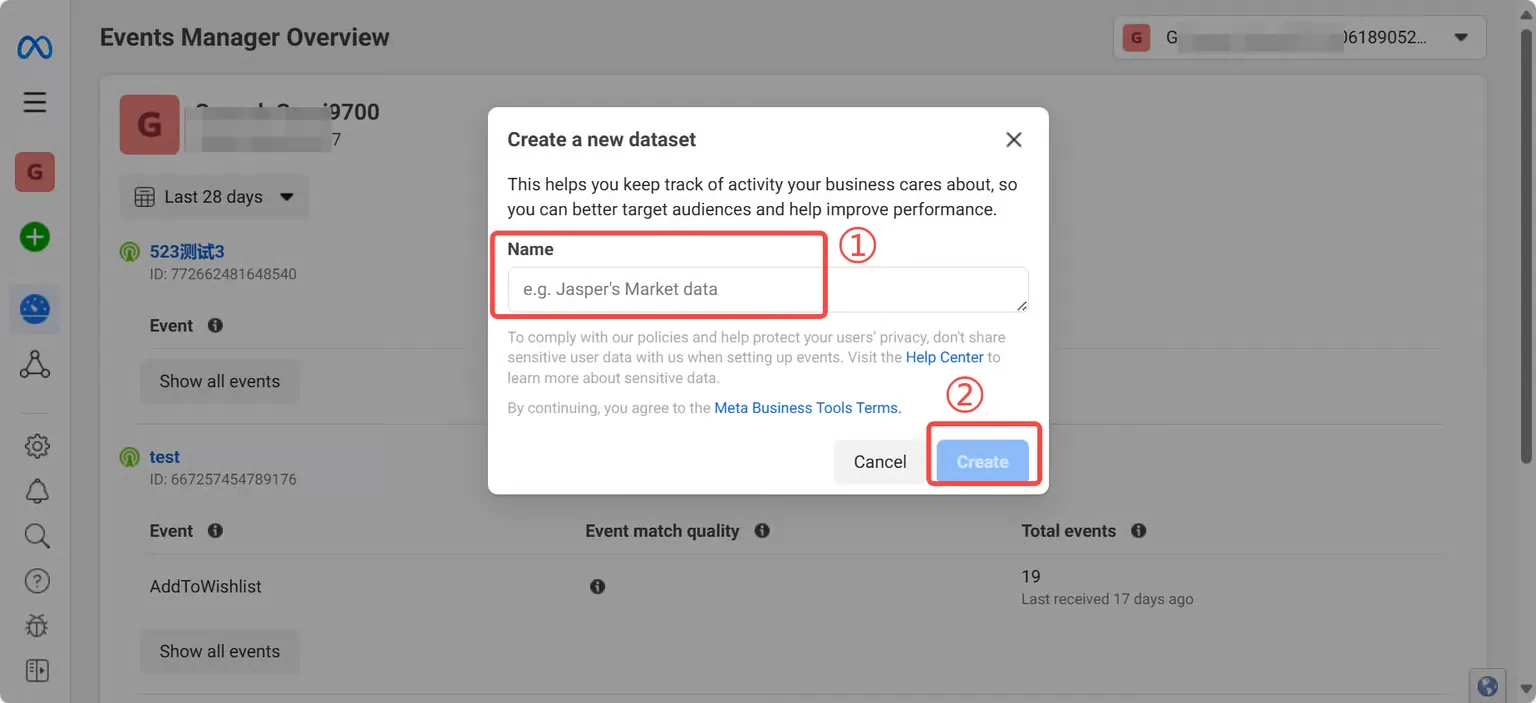
Custom pixel names,click [Create]
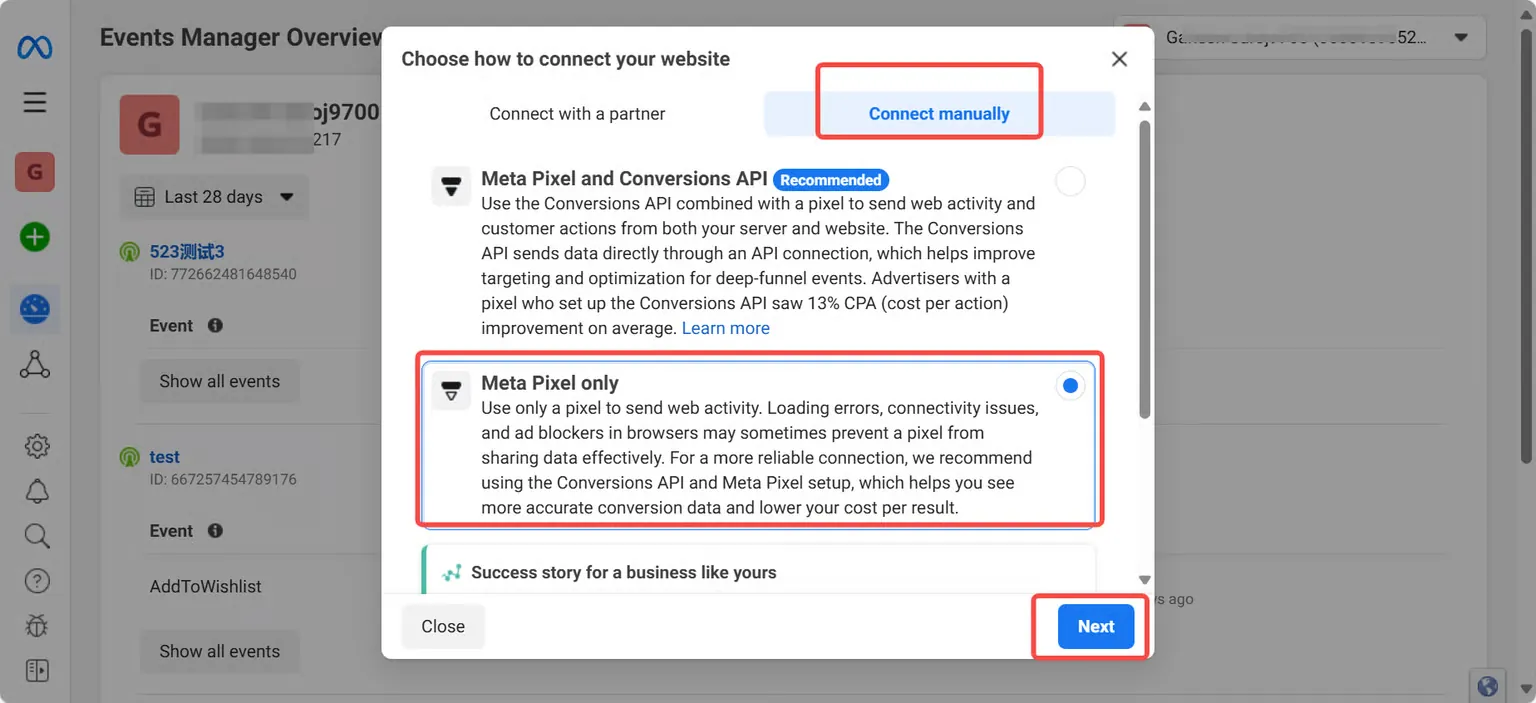
Select [Connect manually],then select [Meta Pixel only] ;
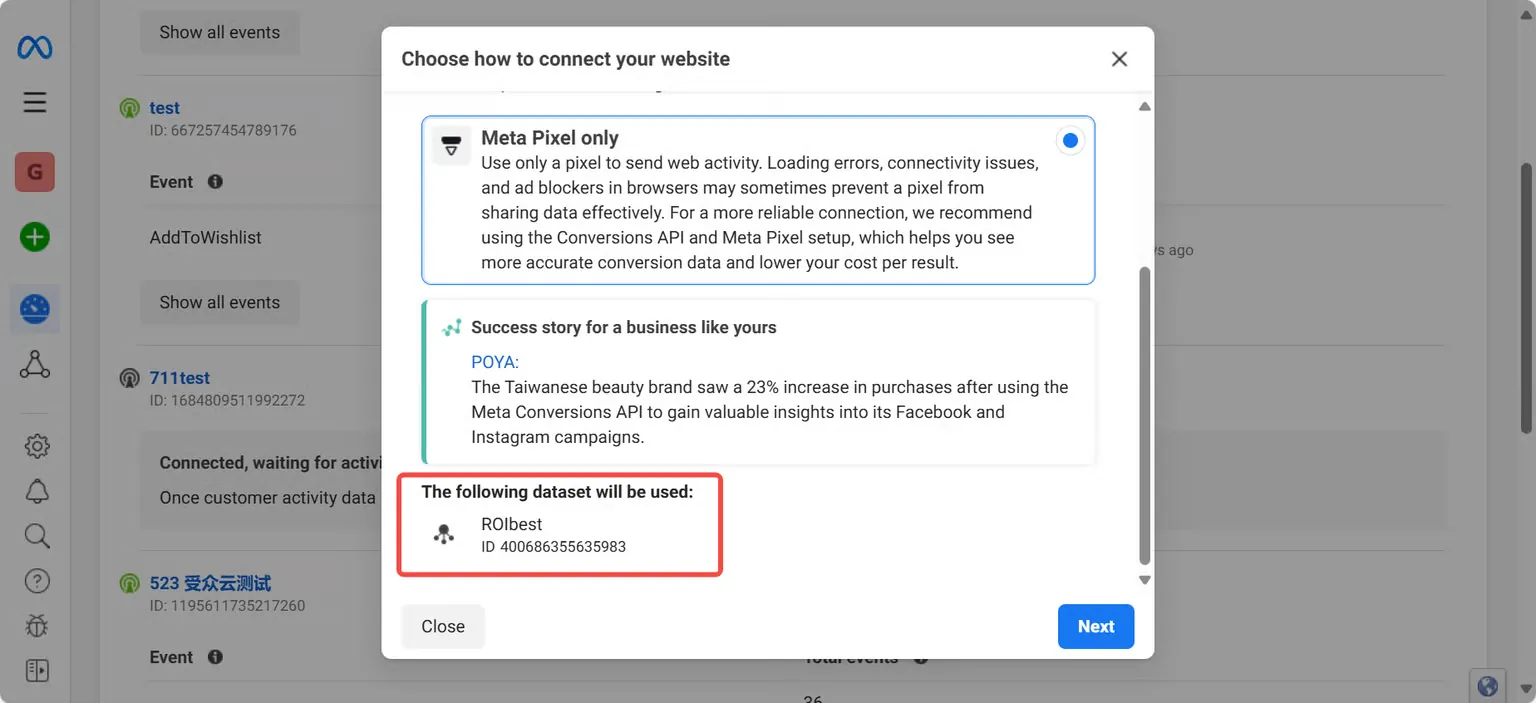
Scroll down to the bottom to see the pixel ID, finally, select [Next];
If you do not need to measure the effectiveness of your advertising campaigns, you can select the Finish button.
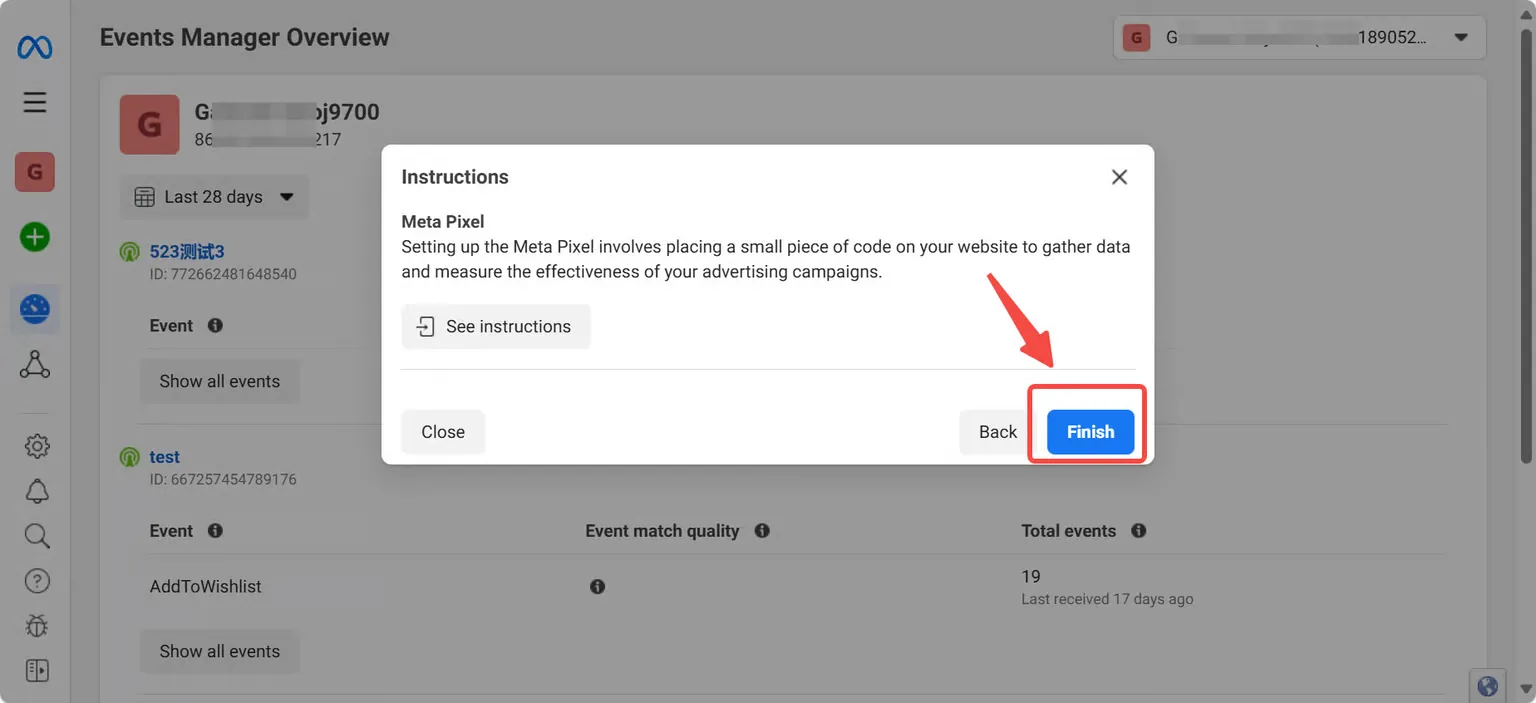
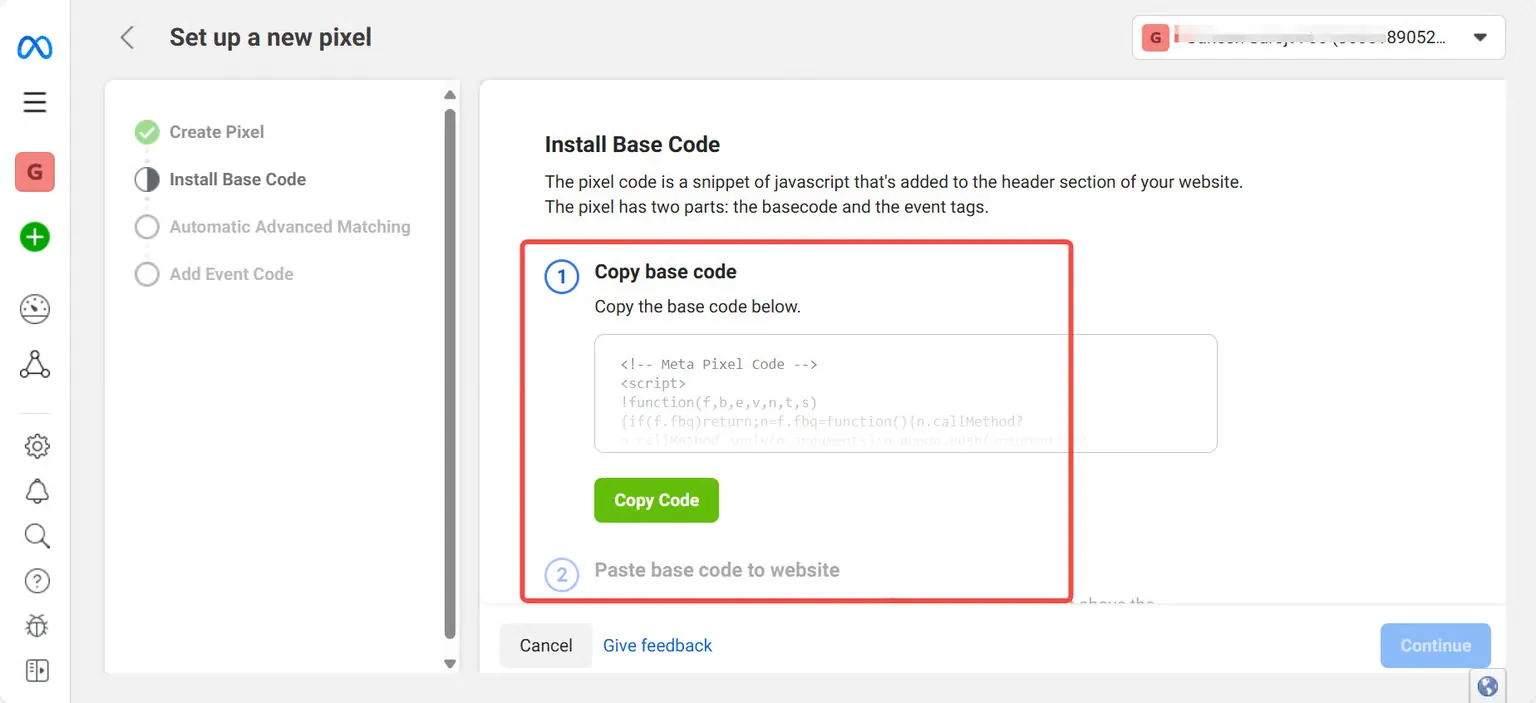
If you need to measure the effectiveness of your advertising campaigns, you can enter the corresponding interface for further operation. For specific operations, please consult your technicians.
Step 3 - Get the Test Event Code
Go back to the data sources interface, you can find the pixel and select Test events.Scroll down and find [Confirm your server's events are set up correctly]
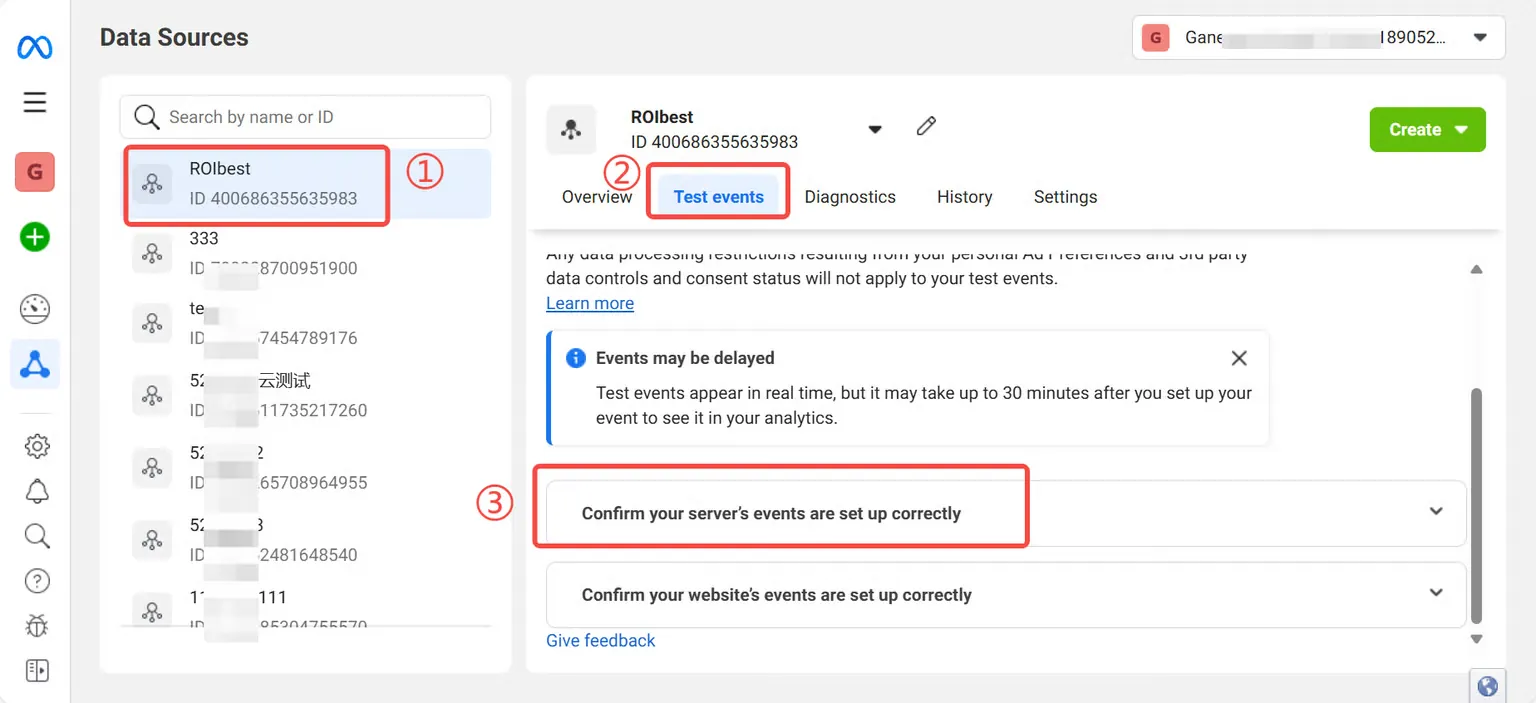
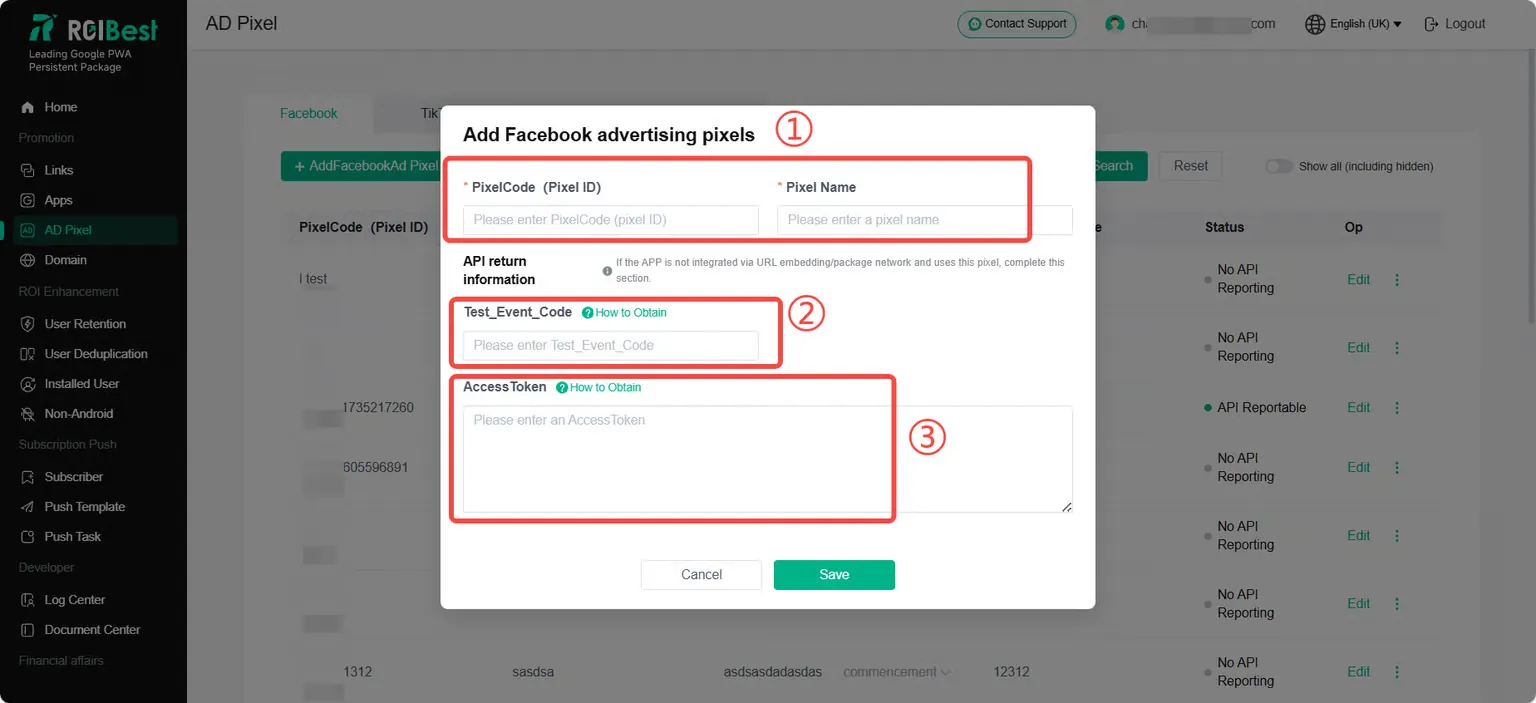
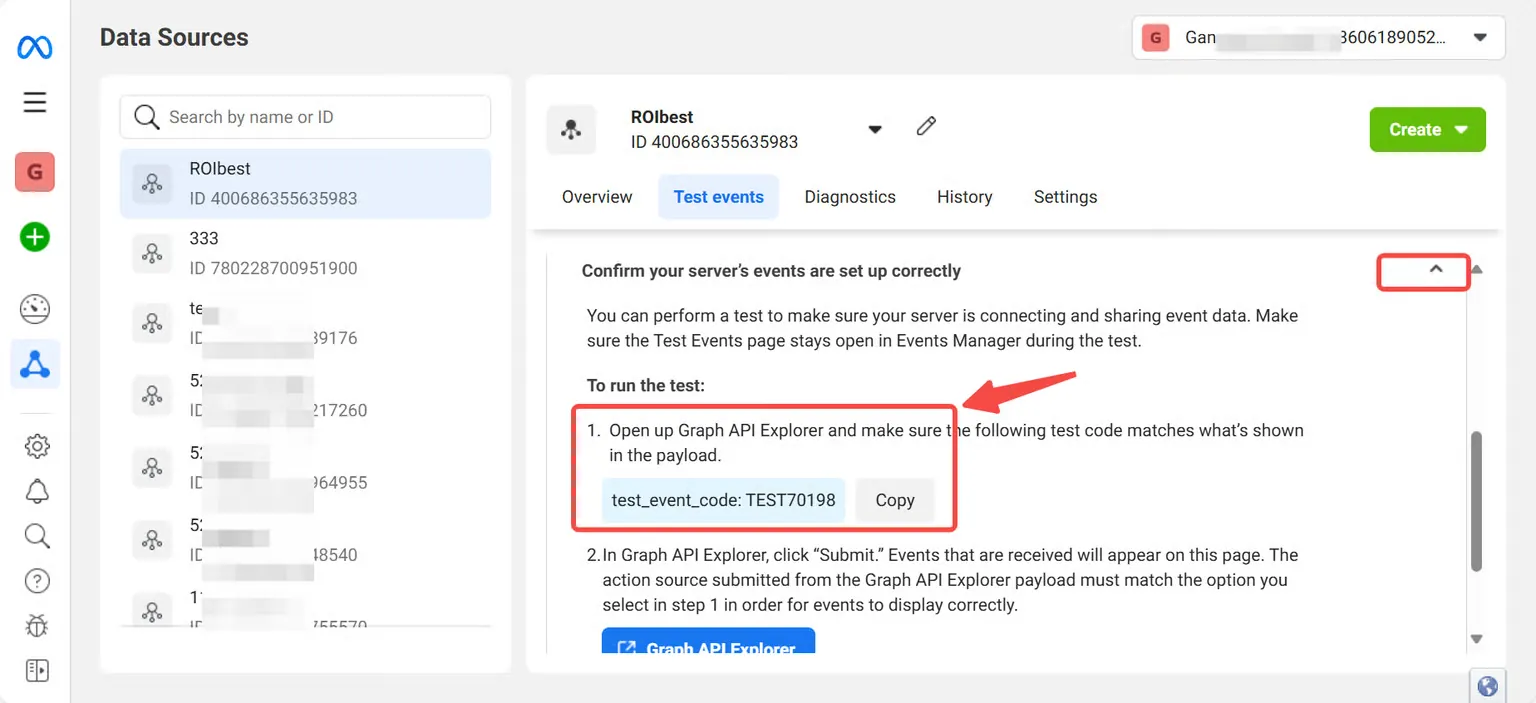
Copy and paste the Test Event Code in the ROIBest backend and fill it in the ROIBest backend;
Step 4 - Get Access Token;
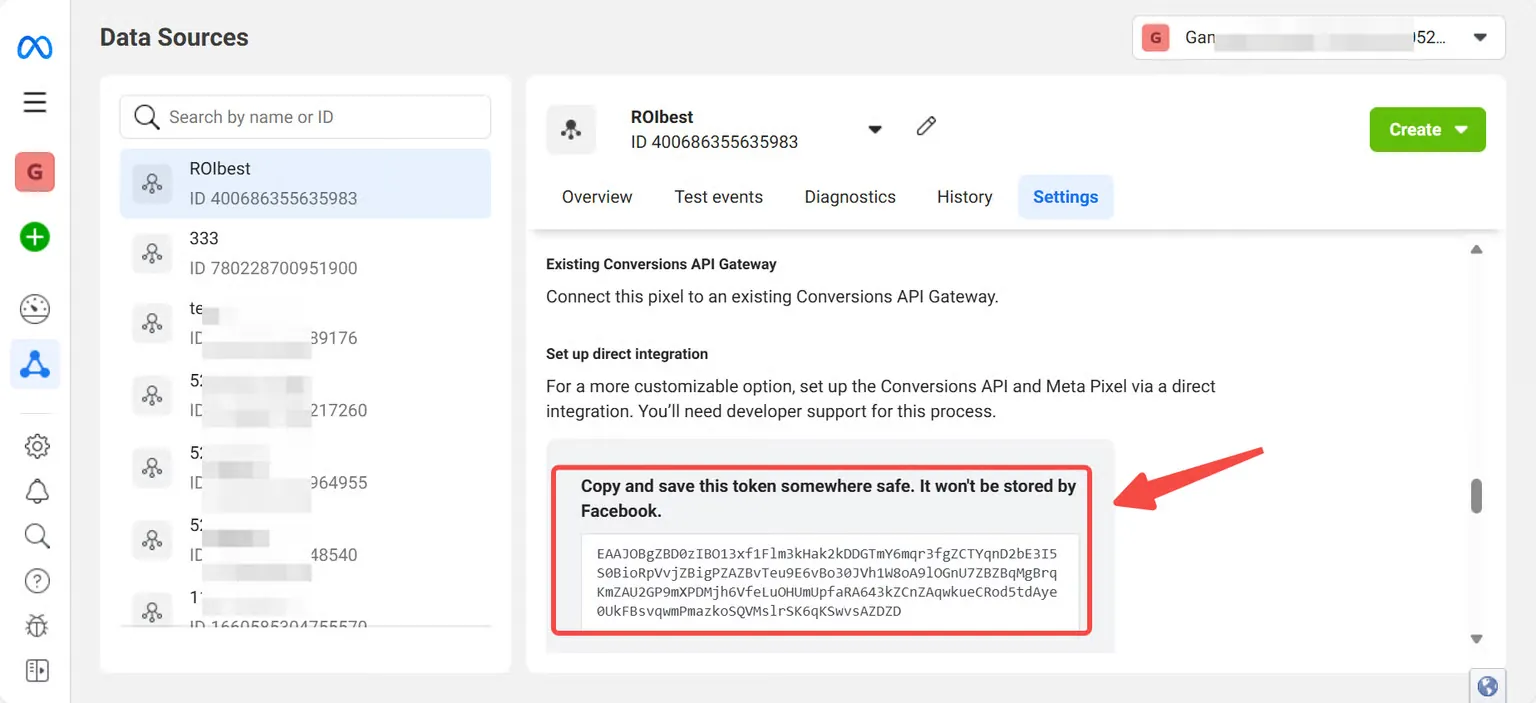
Stay on the data source page, select [Settings], and scroll down to find [Generate Access Token];
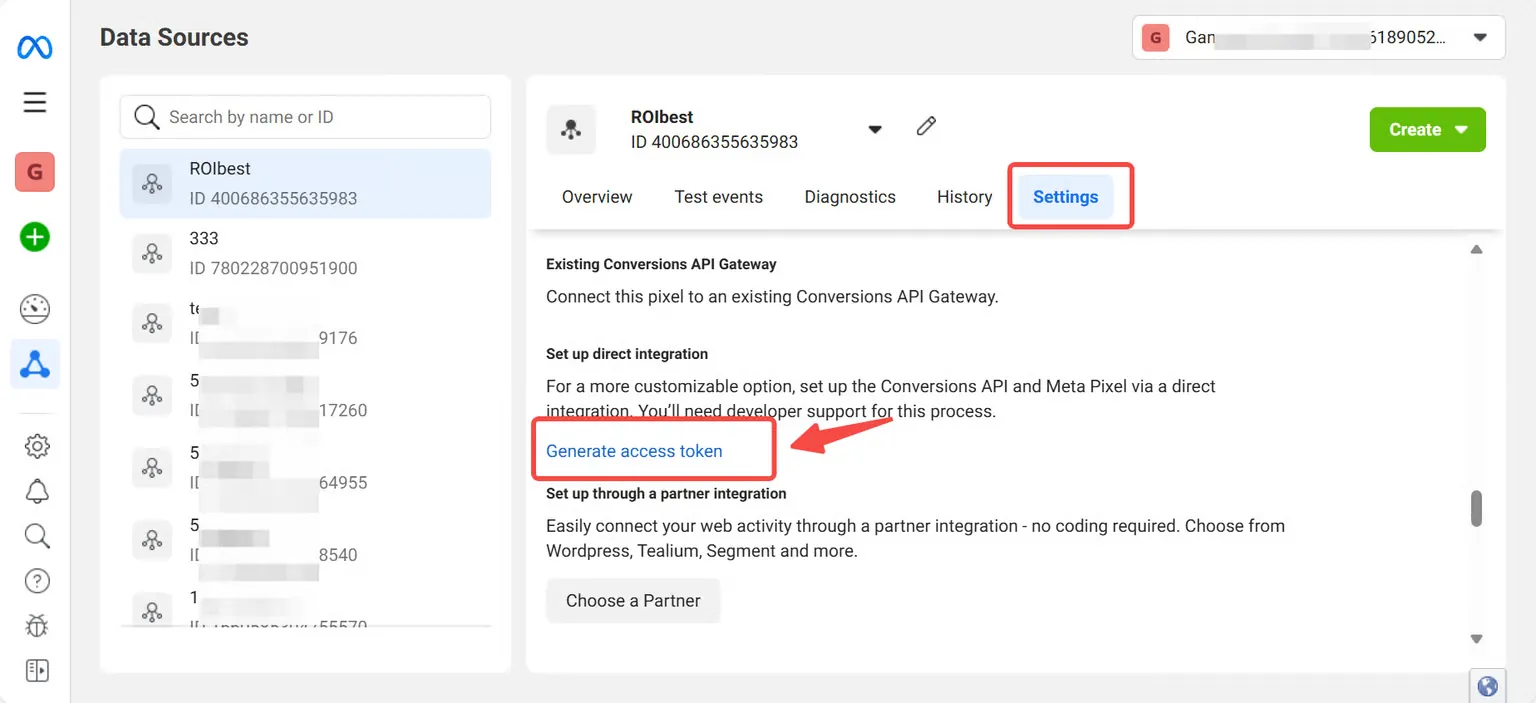
Expand and copy [Generate Access Token] and fill it in the ROIBest backend
Step 5 -Complete the ROIBest backend
Follow the above steps to complete the three parts of the ROIBest backend. Click Finish after filling in the contents.